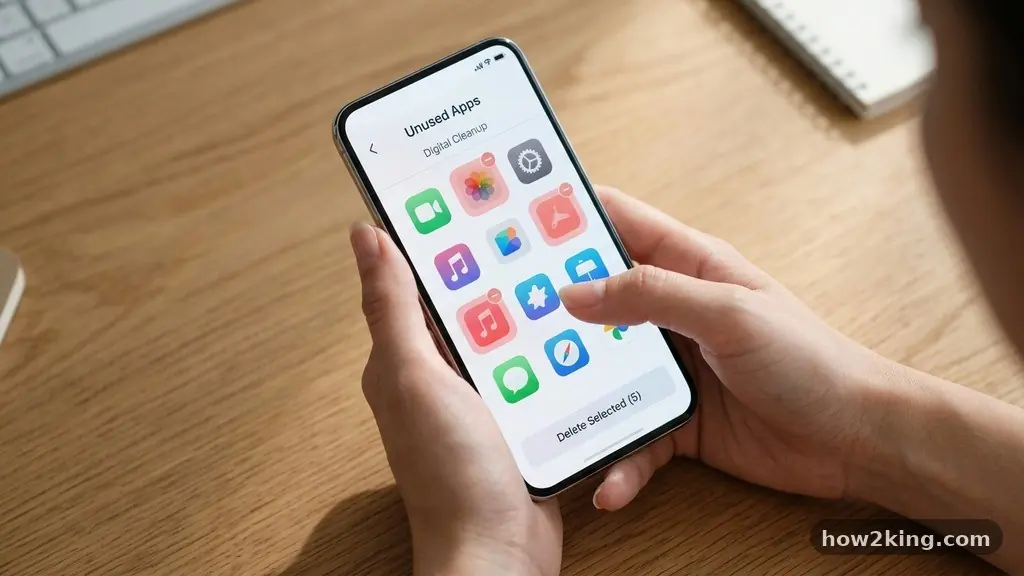
Learning the process of removing unused apps and seeing what they were storing is a vital skill for anyone looking to reclaim space on their device. Over time, smartphones accumulate digital clutter that drains battery life, consumes precious storage, and potentially compromises your privacy.
By auditing your installed software, you can identify which programs are actually providing value and which are merely sitting idle. This article provides the actionable steps you need to clean up your digital environment, manage your storage settings effectively, and understand exactly what data you are leaving behind when you finally hit that delete button.
Identifying Idle Applications on Your Device
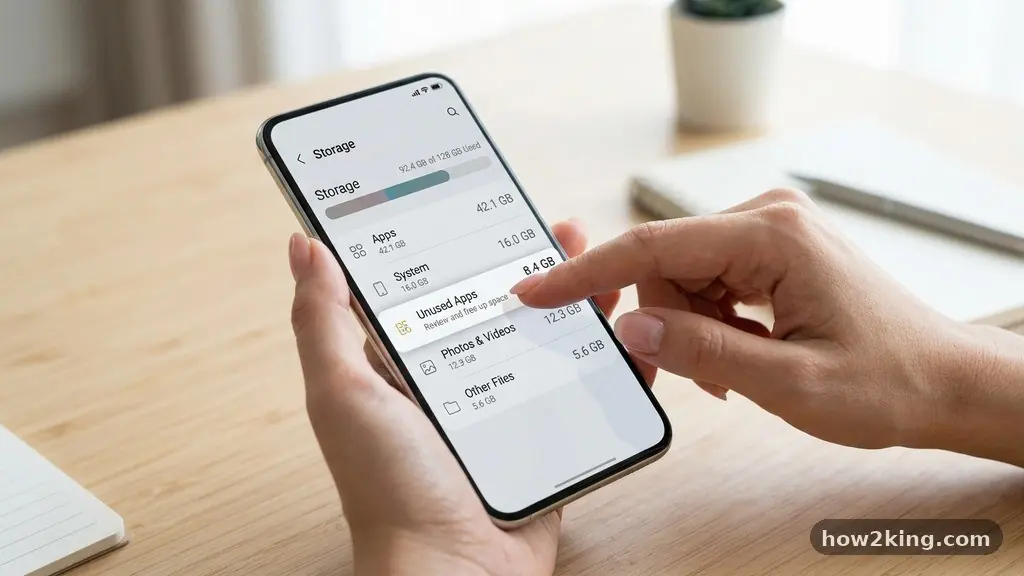
The first step in decluttering your phone involves finding out which programs you haven’t touched in months. Both major mobile operating systems provide built-in tools to help you identify these space-wasters without needing third-party software. On an iPhone, navigate to your Settings, tap General, and then select iPhone Storage.
Here, you will see a list of your apps sorted by the amount of space they occupy. Apple often highlights the date you last used each application, making it easy to spot those that are essentially just taking up room.
On Android devices, the path is slightly different but equally effective for Android app management. You can open the Google Play Store, tap your profile icon, and select Manage Apps & Device. Within the Manage tab, you can sort your list by “Least Used” to see exactly what has been gathering digital dust.
This view is incredibly helpful because it puts the most neglectful offenders right at the top of your list. Once you see the list, you can make informed decisions about what to keep and what to purge.
Understanding Storage Usage Breakdown
It is important to differentiate between the size of the app itself and the size of the data it has accumulated over time. When you look at your storage settings, you will often see two distinct numbers: the app size and the “Documents & Data” size. The app size is the base installation file, while the documents and data represent the cache, saved logins, and downloaded content stored by that specific program.
Sometimes, a tiny app might be hoarding gigabytes of data. Always check this breakdown before deciding which applications to remove to ensure you are targeting the biggest space consumers.
Managing iOS Offload Unused Apps
Apple offers a clever feature called “Offload Unused Apps” that acts as a middle ground between keeping an app and deleting it entirely. When you enable this in your settings, iOS automatically removes the application binary while keeping your personal documents and data intact.
This is a perfect solution for seasonal apps or programs you use only once or twice a year. If you ever need the app again, tapping its icon on your home screen will trigger an immediate redownload from the App Store.
To activate this, go to Settings, tap App Store, and toggle on Offload Unused Apps. You can also perform this manually for individual programs if you want more control. By tapping on a specific app within the iPhone Storage menu, you will see an “Offload App” button.
This action frees up the space used by the application itself but keeps your settings and preferences stored in your iCloud backup. It is a highly efficient way to manage disk space optimization without losing your progress or customized configurations.
Handling Residual Files and Cached Data
Many users are surprised to learn that deleting an app icon does not always guarantee that every trace of the software is gone. When you uninstall a program, there are often residual files left in your system folders, especially on older versions of Android or if the app was poorly coded.
These files might include cached images, temporary configuration logs, or leftover media files. While modern operating systems are better at cleaning up after themselves, they are rarely perfect.
If you are concerned about privacy or extreme storage constraints, you may need to clear the application cache manually before uninstalling. On Android, you can go to Settings, then Apps, select the specific program, and tap Storage & Cache.
Use the “Clear Cache” and “Clear Storage” buttons before hitting the uninstall option. This ensures that you are truly removing unused apps and seeing what they were storing before they vanish from your device for good.
Using Comparison Tables for Storage Decisions
Deciding which apps to keep often comes down to a cost-benefit analysis of space versus utility. Below is a breakdown of how different types of applications typically consume your device’s memory. This table helps you visualize why some categories are more critical to audit than others when you are low on disk space.
| App Category | Typical Storage Impact | Data Accumulation Rate |
|---|---|---|
| Social Media | High | Very Rapid (Cache) |
| Streaming Services | Medium | High (Downloaded Content) |
| Productivity Tools | Low | Low |
| Games | Very High | Moderate |
| Utilities/Browsers | Low | High (Browsing History) |
Addressing Bloatware and Pre-installed Software
One of the most frustrating aspects of mobile management is dealing with bloatware that you cannot easily remove. Manufacturers often include proprietary apps that are baked into the system settings to ensure they remain on your device.
While you might not be able to delete these fully without advanced technical knowledge, you can often disable them. Disabling an app prevents it from running in the background, which stops it from collecting data and using system resources.
To disable a system app on Android, go to your application list, select the app, and look for the “Disable” button. This effectively freezes the app, removes it from your app drawer, and prevents it from updating or consuming battery.
While it doesn’t always free up the primary disk space occupied by the system partition, it stops the app from creating new cached data. For a more detailed look at how to maintain your device’s health, you can visit the official Android help center for further guidance on managing your device performance.
Protecting Your Privacy During App Removal
Removing unused apps is not just about storage; it is about reducing the number of third parties that have access to your personal information. Every app you install carries a set of app permissions that might include access to your location, contacts, microphone, or camera.
When you decide to delete an app, you are also revoking these permissions, which is a great way to tighten your digital security. However, some apps may retain data on their own servers even after you delete them from your phone.
Before deleting an app that holds sensitive information, such as a banking app, a health tracker, or a social network, check the app’s settings for a “Delete Account” or “Export Data” option. Simply uninstalling the app does not always delete your account records on the developer’s side.
If you want to ensure your data is scrubbed, perform these steps inside the app before removing it from your device. This is the most thorough way to ensure that your digital footprint is minimized.
Frequently Asked Questions
Why does my storage space not increase after deleting an app?
Sometimes, your phone’s storage statistics take a few minutes to update after you uninstall a large program. If the space still doesn’t show as reclaimed, try restarting your device to force the system to recalculate the available disk space.
Is there a way to see what data an app stored before I delete it?
You can view the data usage by going to your phone’s storage settings and selecting the specific app. This will show you the amount of “Documents & Data” it is holding, though it rarely provides a granular file-by-file list.
What happens to my photos if I delete a cloud-synced app?
If the app stores photos in its own private cloud, those files may be deleted along with your account if you don’t export them first. Always check if your files are backed up to a general service like Google Photos or iCloud before deleting the app.
Can I reinstall an app later if I change my mind?
Yes, all your purchases and free downloads are linked to your Apple ID or Google account. You can visit your library in the App Store or Google Play Store to redownload any previously installed software at any time.
Does disabling an app stop it from tracking me?
Disabling an app prevents it from running in the background and accessing your system resources. While it significantly limits the app’s ability to operate, it is always safer to uninstall apps you no longer trust or use.
Maintaining a Clean Digital Environment
Staying on top of your application library is a proactive habit that keeps your device running smoothly and securely. By regularly auditing your software and checking your storage settings, you prevent the accumulation of useless cache files and unnecessary background processes. Remember that the goal of removing unused apps and seeing what they were storing is to regain control over your hardware and your digital privacy.
Take a few minutes once a month to review your list of installed programs. Delete the ones that no longer serve a purpose and disable the system bloatware that you cannot remove.
By following these simple steps, you ensure that your phone remains a tool that works for you, rather than a cluttered device struggling under the weight of outdated software. Feel free to share your own cleanup tips or reach out if you have further questions about managing your device’s storage.