Learning how to check what permissions an app has on your phone is a vital skill for maintaining your digital security and personal privacy. Modern smartphones act as hubs for our most sensitive information, from real-time location data to private photos and microphone access.
By regularly auditing these settings, you ensure that third-party software only accesses the hardware and data strictly necessary for its intended function. This practice helps prevent data leakage and keeps you in control of your device’s ecosystem.
To check what permissions an app has on your phone, you generally need to head to your system settings, locate the “Apps” or “Privacy” menu, and drill down into the specific application’s settings. On most Android devices, you can open the Settings app, tap on “Apps,” select the specific application you want to inspect, and look for a section labeled “Permissions.”
Similarly, on an iPhone, you navigate to Settings, scroll down to the app list, and tap on the individual app to view a toggle list of its access rights. Once you reach this screen, you will see a categorized list of permissions, such as the camera, microphone, or location, which you can then toggle off or on depending on your preference.
Accessing Permission Manager on Android
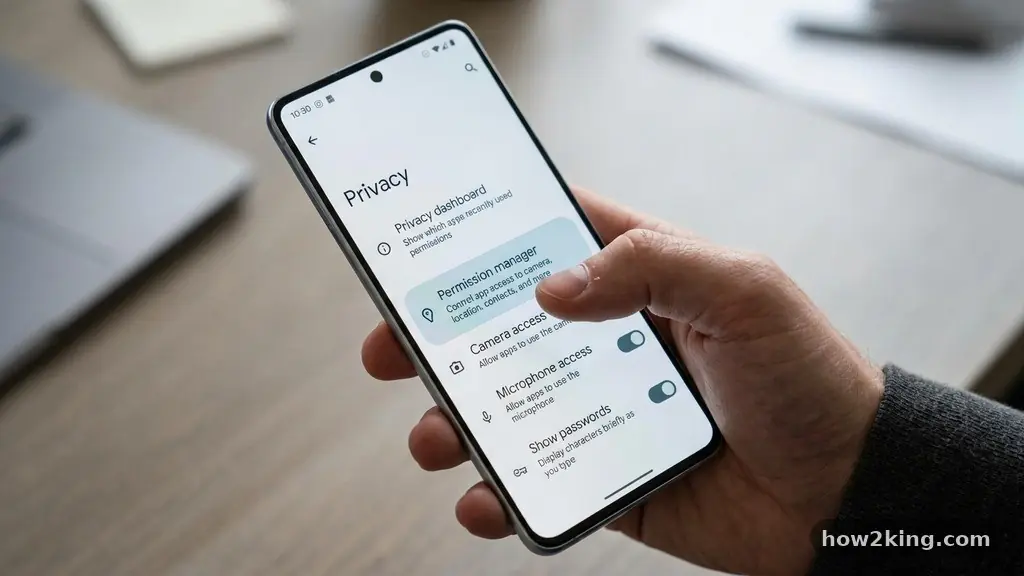
The primary tool for managing app access on modern Android devices is the Permission Manager. This centralized hub allows you to view which apps have been granted access to specific hardware or data types across your entire device.
Instead of checking apps one by one, you can look at the “Location” category to see every app currently capable of tracking your physical movements. This bird’s-eye view makes it significantly easier to spot anomalies or applications that have no logical reason to request such sensitive access.
To find this, go to your phone’s Settings menu and select “Privacy” or “Security.” From there, you will typically find an option labeled “Permission Manager” that lists every permission type available. Clicking on any category, such as “Camera” or “Microphone,” will display two lists: apps with allowed access and apps that have been denied.
You can tap on any application within these lists to change its status instantly. This method is the most efficient way to maintain a clean security profile without needing to remember every app you have installed.
Reviewing Permissions on Android Devices via Settings
If you prefer to audit specific applications rather than categories, you can use the individual app settings menu. This approach is useful when you have just installed a new app and want to ensure it isn’t overstepping its boundaries immediately.
Open your main Settings menu and select “Apps” or “Apps & Notifications” to view your full list of installed software. Tapping on any name in this list will open a detailed information page for that specific program.
Inside this page, look for the “Permissions” tab. This will show you exactly what the app is currently allowed to access, such as your contacts, storage, or calendar. If you notice an app has access to your photos but you only use it for text-based notes, you can simply tap the permission and select “Don’t allow.”
This granular control ensures that your data remains private even if an app developer has designed their software to be more inquisitive than it needs to be. Many users find this manual check-in process helpful for decluttering their digital footprint.
Utilizing App Privacy Reports on iOS
Apple provides a more automated way to monitor background activity through the App Privacy Report feature. This tool records exactly how often apps have accessed your data over the past seven days, including specific timestamps for when they pinged your location or activated the microphone.
To view this, open your Settings, navigate to “Privacy & Security,” and scroll to the bottom to find “App Privacy Report.” You can enable this feature to start logging activity, providing you with a transparent history of your phone’s behavior.
This report is particularly useful for identifying “silent” data collection. If you see an app accessing your contacts or photos in the middle of the night when you aren’t using the phone, it is a clear signal to investigate further.
You can then use this information to go back into your privacy settings and restrict those specific permissions. While Android users rely more on the Permission Manager for real-time control, the iOS report offers a historical perspective that is excellent for identifying long-term patterns of data usage.
Understanding the Risk of Excessive Permissions
Granting excessive permissions can expose you to significant privacy risks, especially with apps that appear benign but harbor malicious intent. An app that requests access to your camera and microphone might be intended for video calls, but if that app is compromised, it could theoretically capture footage without your knowledge.
Similarly, allowing an app access to your location data when it is not a navigation or weather tool creates a digital trail of your daily habits. This information can be harvested and sold to third-party advertisers, or worse, used to build a profile of your physical movements.
It is helpful to consider whether an app truly needs the access it requests to function correctly. A calculator app, for instance, has no functional reason to request access to your contact list or your GPS coordinates. When you encounter a request for a permission that seems out of place, it is almost always safer to deny it.
You can often still use the app’s core features even after denying unnecessary requests. If the app refuses to run without those permissions, you should carefully consider whether the utility it provides is worth the potential compromise to your privacy.
Managing Permissions by Category
When you are performing a deep audit of your device, it is best to approach the task by category rather than by app. By looking at all apps that have access to your Bluetooth or Photos, you can apply a consistent policy across your device.
For example, if you decide that you no longer want any apps to track your precise location in the background, you can visit the “Location” category in your privacy settings and switch every app to “Ask every time” or “While using the app.” This systematic approach prevents you from missing any hidden settings.
The following table summarizes common permission categories and the risks associated with granting them to untrusted applications:
| Permission Category | Primary Risk | Recommendation |
|---|---|---|
| Location | Physical tracking and habit profiling | Limit to “While using” only |
| Microphone | Unauthorized audio recording | Restrict to communication apps |
| Camera | Unauthorized visual surveillance | Grant only for photo/video apps |
| Contacts | Unauthorized data scraping | Deny for non-social apps |
| Bluetooth | Proximity tracking/device discovery | Disable for non-essential tools |
Leveraging the Privacy Dashboard
For a more technical overview of how your data is being handled, you should look into the Privacy Dashboard. This feature is a hallmark of modern Android versions, offering a visual timeline of which apps have accessed your data over the last 24 hours.
It provides a quick way to verify that your privacy habits are holding up in real-time. If you notice a specific app appearing repeatedly on this dashboard, you can click it to jump directly to its permission settings and revoke access.
This dashboard is particularly effective because it bridges the gap between passive monitoring and active management. You don’t have to guess if an app is behaving; you can see the evidence directly on the screen. Many users find that checking this dashboard once a week is sufficient to keep their device secure.
It turns the complex task of permission management into a simple, visual activity that takes less than a minute to perform. For more detailed information on how these protections work at the system level, you can visit the official Android safety resource page.
Frequently Asked Questions
Does denying a permission always break the app?
Not necessarily. Many modern operating systems allow apps to function in a “degraded” state, where they work normally but simply cannot access the specific feature you denied. For example, a photo editing app might still work perfectly for existing files even if you deny it access to your camera.
How often should I check my app permissions?
A good rule of thumb is to perform a quick audit whenever you install a new app and once every few months for your existing software. Over time, apps may receive updates that request new permissions, so periodic checks are essential for maintaining your security baseline.
What happens if I accidentally deny a necessary permission?
If an app stops working as expected, you will usually receive a notification or an in-app prompt asking you to re-enable the permission. You can then navigate back to your settings and toggle the permission back on. It is a completely reversible process that carries no risk of breaking your device.
Are system apps safe to ignore?
Generally, yes, as system apps are managed by the device manufacturer or the OS developer. However, it is still good practice to be aware of what they are doing. You can usually view system app permissions by selecting “Show System” in your app list settings.
Do permissions affect my battery life?
Yes, they can. Apps that constantly access your location or keep the microphone active in the background will drain your battery much faster than those that do not. Restricting background permissions is an excellent way to improve your overall battery health and device performance.
Final Thoughts on Privacy
Taking control of your digital privacy starts with being intentional about what information you share with the apps on your phone. By regularly checking what permissions an app has on your phone, you transform your device from a potential liability into a secure, private tool.
This process is not a one-time chore but a habit that protects your personal life from unnecessary intrusion. Start by setting aside a few minutes each month to review your settings, and you will quickly find that you have a much clearer understanding of your digital footprint.
If you find that an app is consistently asking for data that it does not need, do not hesitate to delete it entirely. There are almost always alternatives available that respect your privacy more effectively.
Staying informed and proactive is the best defense against data overreach. We hope this guide helps you feel more confident in managing your device settings and keeping your personal information exactly where it belongs—with you.