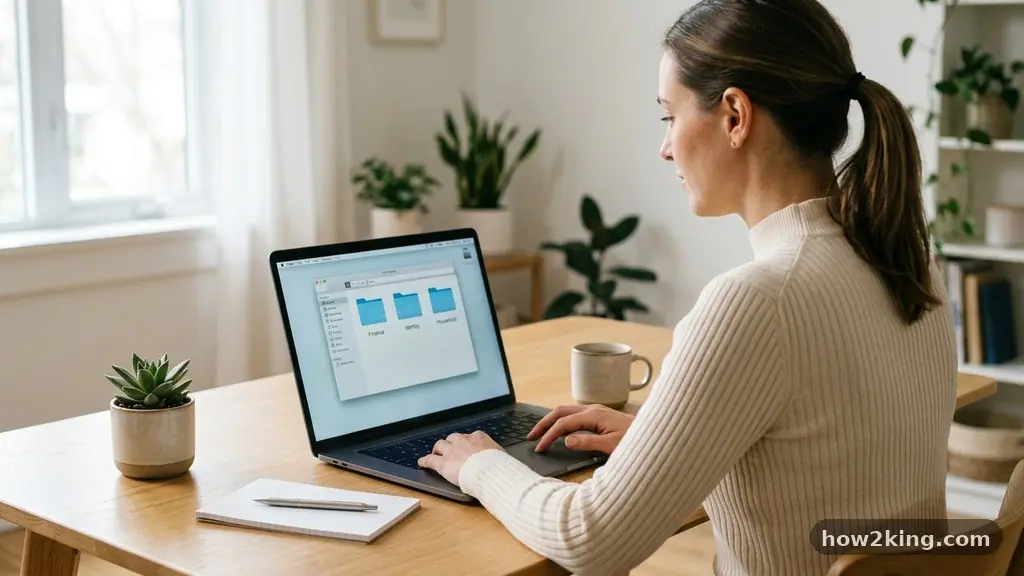
Getting your paperwork under control by creating a Simple Digital Filing System for Personal Documents is one of the most effective ways to reduce daily stress. Instead of digging through stacks of paper or hunting for misplaced emails, you can gain immediate access to every important record you own.
By moving toward a paperless lifestyle, you ensure that your sensitive information remains secure, searchable, and organized for the long term. This process isn’t about perfection; it’s about building a sustainable habit that saves you time and prevents the panic of lost documents when you need them most.
The most effective way to start is by establishing a top-level folder structure that mimics the categories of your real life. You should aim for a “broad to narrow” approach, keeping the number of main folders to five or fewer to prevent overwhelming your workspace. Start with primary categories like Finance, Medical, Identity, Property, and Education.
Within each of these, you can add specific sub-folders as your collection grows. This hierarchical method ensures that you always have a logical place to put a new file, which is the secret to maintaining a clean system over the long term.
Establishing Your Primary Folders
Your main directory should be intuitive enough that you don’t have to think about where a file goes. Most people find success with a structure that separates their life into distinct buckets. For example, a folder named “Finance” can house sub-folders for “Taxes,” “Bank Statements,” and “Investments.”
A folder for “Identity” should include your passport scans, birth certificates, and social security documentation. Keeping these separate from everyday receipts or utility bills prevents your main view from becoming cluttered with less important information.
Naming Conventions That Actually Work
Consistency is the engine of any digital filing system. If you name one file “Tax_2023_Receipts” and another “2023-Tax-Doc,” you are making it harder for your computer’s search function to find what you need.
Adopt a standard format like YYYY-MM-DD-Description for every file you save. Using the date first ensures that files are automatically sorted chronologically, which is incredibly helpful when you are looking for the most recent statement from a credit card or a utility provider.
Choosing the Right Tools for Storage
You don’t need expensive software to manage your digital life effectively. Most modern cloud storage services provide more than enough security and space for the average household. Services like Google Drive, Dropbox, or iCloud offer robust encryption and synchronization across your phone, tablet, and laptop.
These platforms allow you to access your records from anywhere, which is a major advantage during emergencies or while traveling. Ensure you enable two-factor authentication on whichever service you choose to add an extra layer of protection to your sensitive data.
Cloud vs. Local Storage
While cloud storage is convenient, some people prefer to keep a local backup for peace of mind. A hybrid approach is often the safest bet for important documents. You can keep your primary working files in the cloud for easy access while maintaining a secondary, encrypted copy on an external hard drive kept in a fireproof safe.
This strategy protects you against both data loss from a service provider and potential hardware failure on your personal computer. It is a simple, low-cost way to ensure your records are truly permanent.
Digital Security Basics
Security is non-negotiable when you are digitizing personal records. Never store sensitive passwords in plain text files within your folders. Instead, use a dedicated password manager to handle your login credentials.
If you are uploading scans of birth certificates or tax returns, ensure the files themselves are password-protected if the storage service allows it. Regularly audit your folders to ensure you aren’t storing sensitive documents in shared folders that others might have access to by mistake.
Scanning Physical Records Effectively
Many people struggle to start because they have a backlog of physical paper that needs to be digitized. You do not need to scan every single piece of mail you have ever received. Start by focusing on the documents that are difficult or expensive to replace, such as marriage licenses, property deeds, or medical records.
Use a high-quality scanning app on your smartphone, which can automatically crop and sharpen images to make them look like professional PDF documents. This turns your phone into a portable scanner that you can use the moment you open your mail.
The Batch Processing Method
Don’t try to digitize your entire filing cabinet in a single weekend. That approach leads to burnout and abandoned projects. Instead, dedicate 15 minutes each week to process the new paper that has accumulated on your desk.
Treat your digital filing as a weekly chore, similar to taking out the trash or doing the laundry. When you process documents in small batches, the task remains manageable and you are much more likely to stick with the system for years to come.
When to Shred and When to Keep
Not everything needs to be kept in physical form, but there are certain documents that legal or financial experts still recommend holding onto. According to guidelines from the Internal Revenue Service, you should maintain physical copies of certain tax-related documents for specific periods.
Always check the requirements for your specific jurisdiction regarding legal documents like house titles or original birth certificates. If you aren’t sure, it is safer to store the physical original in a secure location and keep a digital copy for daily reference.
Maintaining Your Digital Filing System
The biggest challenge isn’t setting up your folders; it is keeping them tidy over time. A system that isn’t maintained quickly becomes a “digital junk drawer” where files go to be forgotten. Once a quarter, perform a quick “digital spring cleaning” to delete temporary files, duplicate downloads, and expired documents.
This habit keeps your storage space clean and ensures that your search results remain relevant. It also gives you a chance to re-evaluate whether your folder structure still fits your current life circumstances.
Handling Incoming Digital Mail
Most of your paperwork likely arrives via email rather than through the post office. Don’t leave your important attachments sitting in your inbox indefinitely. Treat your inbox like a temporary holding area, not a filing cabinet.
When you receive a monthly bank statement or a medical bill, download it immediately and move it into your organized folder structure. If you leave it in your email, you are relying on a search bar that might fail you if the sender changes their email address or subject line format.
Managing Shared Family Records
If you are managing files for a family, communication is just as important as the technology you use. Establish a shared folder that everyone in the household can access for common items like utility bills, pet records, or school documents.
Make sure everyone agrees on the naming convention so that the system doesn’t become chaotic. You might even consider creating a “Read Me” file or a simple document that explains the folder structure so that new users understand where to find what they need.
Comparing Common Storage Options
Choosing where to keep your files depends on your budget and your comfort level with technology. Most reputable cloud providers offer a free tier that is sufficient for basic document storage.
If you have a massive collection of high-resolution photos or videos, you may eventually need to upgrade to a paid plan. The following table highlights the common features of popular storage solutions for personal document management.
| Storage Service | Typical Free Tier | Best Feature | Platform Compatibility |
|---|---|---|---|
| Google Drive | 15 GB | Powerful Search | Web, iOS, Android |
| iCloud | 5 GB | System Integration | Apple Devices |
| Dropbox | 2 GB | Fast Syncing | Cross-Platform |
| OneDrive | 5 GB | Office Integration | Windows, Web |
Evaluating Your Storage Needs
When looking at the table above, consider how many documents you actually plan to digitize. Most text-based PDF documents are very small, meaning even 5GB of storage can hold thousands of individual files.
You likely won’t need to pay for extra storage unless you are also backing up large media files or high-resolution photo libraries. Start with the free tier and only upgrade if you hit your limit, which avoids unnecessary monthly expenses.
Overcoming Common Obstacles
Many people feel intimidated by the prospect of organizing years of accumulated records. It is common to feel like you are behind, but remember that a simple system is better than no system at all. If you find yourself procrastinating, start with the “current year” folder.
Don’t worry about the past right now. By organizing only what comes in starting today, you stop the bleeding and prevent the pile from growing any larger. You can always go back and digitize older files when you have extra time or a specific need.
Handling Different File Types
You will encounter various formats, including PDFs, images, and even spreadsheets. Keep your system flexible enough to handle these different types while maintaining your strict naming convention. If you have a document that is multi-page, use a tool that allows you to merge scans into a single PDF file.
This is much easier to manage than having five separate images for a single bank statement. Consistency in file format, specifically using PDFs for documents, ensures that your files remain readable on any device for decades.
Managing Decluttering Anxiety
Letting go of physical paper can feel risky, even when you have a digital backup. Start by keeping your physical files in a “pending” box for a few months after scanning them.
Once you realize you haven’t needed to touch the physical copy, you can feel more confident about shredding it. This creates a safety net that helps you transition into a paperless mindset without the stress of feeling like you’ve permanently destroyed something important.
Frequently Asked Questions
Is it safe to store my Social Security card and birth certificate online?
It is generally recommended to keep physical originals of vital identity documents in a secure, fireproof safe at home or in a bank deposit box. While you can keep a digital copy for convenience, avoid uploading high-resolution scans of these specific documents to public cloud services unless you have encrypted the file with a strong, unique password.
What is the best way to handle receipts that fade?
Thermal paper receipts are notorious for fading after just a few months. The best approach is to scan or take a photo of the receipt immediately after purchase. Once you have a clear digital image, you can safely discard the physical paper, as the digital version will remain legible indefinitely.
How often should I back up my digital files?
If you use a cloud-based service, your files are being backed up automatically in real-time. If you store files locally on your computer, you should set up an automated backup schedule to an external drive at least once a week. Never rely on a single copy of your files, regardless of where they are stored.
Should I organize by date or by category?
The most effective system uses a hybrid approach. Use categories for your top-level folders, such as “Medical” or “Financial,” and then use a date-based naming convention for the files within those folders. This gives you the best of both worlds: a clear place to look and a chronological order that makes finding specific documents easy.
How do I start if I have boxes of old papers?
Don’t try to tackle the whole collection at once. Set a goal to process just one small folder or one stack of paper per week. Focus on the most recent items first, as those are the ones you are most likely to need, and slowly work your way back through the older boxes as time allows.
Next Steps for Your Digital Organization
Creating a Simple Digital Filing System for Personal Documents is a rewarding project that pays dividends in peace of mind. By taking the time to categorize your records, adopt consistent naming habits, and utilize secure storage, you are setting yourself up for long-term success. You don’t have to be a professional organizer to see the benefits of a clean digital workspace.
Start by creating your top-level folders today and move just one document into its new home. You will quickly realize how much weight is lifted when you know exactly where your important information is stored. Continue building your system one folder at a time, and enjoy the freedom that comes with a truly organized digital life.