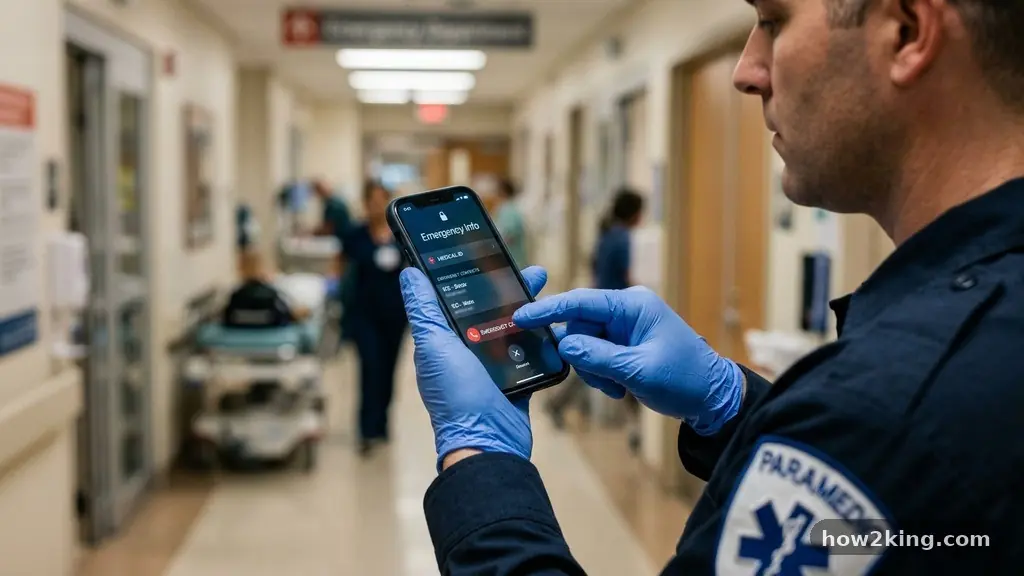
Building a Personal Emergency Information File on Your Phone is a simple yet vital step that can save precious time during a medical crisis. Most modern smartphones include built-in features designed specifically to share critical health details with first responders, even if your device remains locked.
By taking ten minutes to organize your health data, you ensure that emergency personnel have immediate access to your medication list, allergies, and emergency contacts when you cannot speak for yourself. This proactive approach to digital safety provides peace of mind for you and your family, transforming your device into a potentially life-saving tool during an unexpected injury or sudden health event.
Understanding the Built-In Medical ID Features
Modern mobile operating systems have made significant strides in prioritizing user safety through dedicated emergency interfaces. On an iPhone, the Medical ID feature is integrated directly into the Health app, allowing you to input comprehensive clinical information that appears on the lock screen.
Android devices offer similar functionality through the Emergency Information settings, which often allow you to add details like blood type and organ donor status. These systems are designed with user privacy in mind, ensuring that your sensitive health data is stored locally on the device rather than on a public server.
Accessing Your Data Without Unlocking
The primary utility of these files lies in their accessibility during a crisis. A first responder can access your emergency profile by swiping up on the lock screen and tapping the “Emergency” option. This action bypasses biometric authentication, such as Face ID or fingerprint scanning, which might fail if you are unconscious or physically incapacitated.
Understanding how to trigger this view on your specific phone model is essential for testing your setup. You should demonstrate this process to your family members so they know exactly where to look if they are with you during an incident.
What Information to Include for First Responders
When organizing your health data, prioritize information that directly influences immediate medical treatment. A comprehensive file should start with your full name, date of birth, and any chronic conditions that might complicate emergency care.
You should also list your primary care physician and their contact information, as this allows hospital staff to request your medical history quickly. While you do not need to provide every detail of your health history, focusing on acute, high-impact data is the best strategy.
Critical Data Points for Your Profile
Certain pieces of information are universally recognized as essential by paramedics and emergency room staff. Your medication list is perhaps the most important entry, as it helps doctors avoid prescribing drugs that could trigger dangerous interactions.
Allergies, especially those to common medications like penicillin or latex, must be clearly highlighted at the top of your file. If you have a specific blood type, including it can expedite the process of cross-matching if a transfusion becomes necessary.
- Full legal name and current address
- Emergency contacts with relationship labels
- Current medication list including dosages
- Known drug and environmental allergies
- Primary care physician name and phone number
- Blood type and organ donor status
- Advance directives or DNR status if applicable
Configuring Emergency Contacts Effectively
Your emergency contacts serve as the bridge between the hospital and your support network. You should select people who are likely to be available and who have the authority to make decisions on your behalf if you are incapacitated.
It is best to list at least two contacts to increase the likelihood of reaching someone in a timely manner. Ensure that these contacts are saved with their full names and clear relationship labels, such as “Spouse” or “Parent,” so that medical staff know exactly who they are calling.
Maintaining Updated Contact Information
A common mistake is failing to update contact details when a friend or family member changes their phone number. Set a recurring reminder on your calendar to review your emergency file every six months.
If a contact changes their residence or switches carriers, update your phone records immediately to avoid dead-end calls during a high-stress moment. You can also verify that these contacts are set to receive emergency alerts if your phone supports automated location sharing during an SOS event.
Digital Privacy and Security Considerations
Building a Personal Emergency Information File on Your Phone involves balancing accessibility with personal data security. While you want first responders to see your information, you do not want random passersby to access your health history.
The built-in features provided by Apple and Google are designed to protect your privacy by keeping this data encrypted on your device. This complies with general standards similar to HIPAA privacy regulations regarding the handling of protected health information in a digital format.
Managing Cloud Backup and Syncing
Most health apps offer the ability to sync data across devices via a secure cloud backup. This is beneficial if you frequently upgrade your phone, as it ensures your medical profile transfers automatically to your new device.
However, you should ensure that your cloud account is protected by strong, unique passwords and two-factor authentication. If you are uncomfortable with cloud storage, you can disable syncing and keep the data strictly on the hardware, though this requires manual updates when you switch phones.
Comparing Emergency Features Across Platforms
Different smartphone platforms offer varying degrees of customization for your emergency profile. While the core functionality remains consistent—providing vital stats to first responders—the layout and input methods differ significantly between iOS and Android.
Understanding these differences can help you optimize your specific device for the best possible outcome in an emergency. The table below outlines how these two primary ecosystems handle critical emergency data.
| Feature | Apple Health (iOS) | Google Health Connect (Android) |
|---|---|---|
| Access Method | Emergency button on lock screen | Emergency info button on lock screen |
| Biometric Bypass | Yes, via Emergency SOS menu | Yes, via Emergency button |
| Data Syncing | iCloud encrypted backup | Google Account / Device local |
| Custom Fields | High customization | Varies by manufacturer UI |
Automated SOS Alerts and Location Sharing
Beyond static information, many modern phones include automated SOS features that can alert your emergency contacts when you are in trouble. By pressing a specific button combination, such as holding the power and volume buttons on an iPhone, you can trigger a countdown that calls local emergency services.
Once the call ends, the phone automatically sends a text message to your emergency contacts with your current GPS coordinates. This feature is invaluable if you are involved in a traffic accident or find yourself in a dangerous situation where you cannot verbalize your location.
Testing Your Emergency SOS Settings
You should configure these settings while in a calm environment, ensuring that you understand the button combinations required to trigger the alert. It is important to note that many phones allow you to cancel the countdown if you trigger it by accident.
Before you finish setting up your phone, verify that your emergency contacts have been notified via the settings menu. Some Android devices also allow you to record a short video or audio clip that is automatically uploaded to a trusted contact when the SOS feature is activated.
Frequently Asked Questions
Will my medical information be visible to anyone who picks up my phone?
The information is only accessible through the specific “Emergency” interface designed for first responders. A person who finds your phone cannot browse your apps, photos, or messages without your passcode or biometric authentication. The emergency screen is strictly limited to the health data you choose to share.
Do I need to pay for an app to store this information?
No, you do not need third-party apps for basic emergency information. Both Apple and Google provide this functionality for free within their respective Health and Settings applications. These built-in tools are more reliable than external apps because they are deeply integrated into the operating system’s lock screen.
What if I change my blood type or medication?
You can edit your medical profile at any time by opening the Health app or the Emergency Information section in your phone’s settings. It is a good practice to update your medication list every time your prescription changes. Keeping the data accurate is just as important as setting it up in the first place.
Can emergency responders see my contact list?
No, they cannot access your full contact list. They can only see the specific emergency contacts you have explicitly designated within your Medical ID or Emergency Information profile. This ensures that your privacy remains protected while still providing a way for them to reach your family.
Establishing Your Digital Safety Protocol
Building a Personal Emergency Information File on Your Phone is a fundamental part of modern safety preparedness. By spending a few moments to input your medical history, you empower first responders to make informed, rapid decisions that could ultimately save your life. This process is not just about technical configuration; it is about ensuring that your medical needs are communicated clearly when you are at your most vulnerable.
Start by opening your health settings today, adding your critical details, and verifying that your emergency contacts are accurate and reachable. Taking these small, deliberate steps turns your smartphone into a reliable partner in your personal safety, providing you with a layer of protection that is always in your pocket.