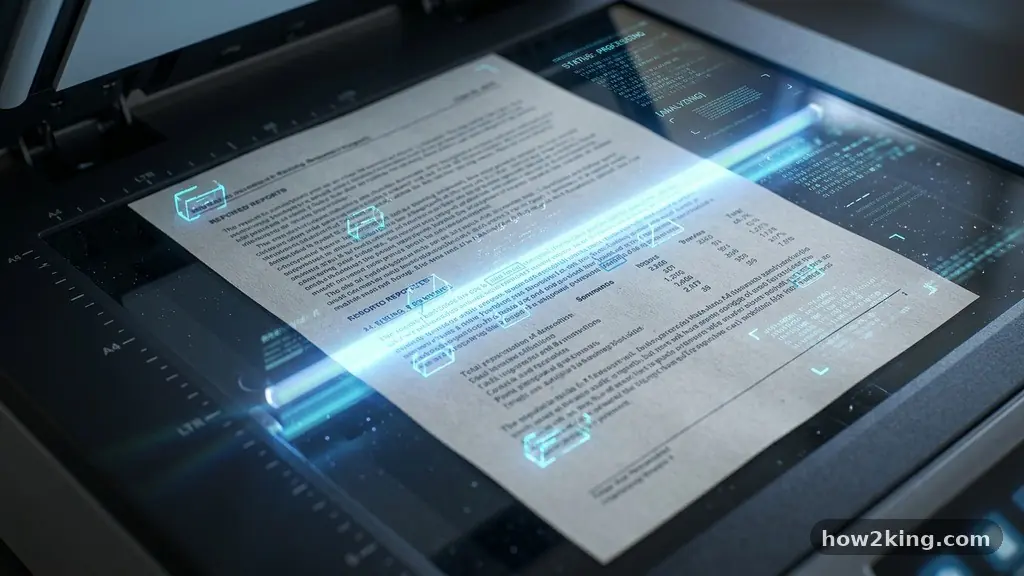
Turning a physical sheet of paper into a digital file that you can actually modify is a task that saves hours of retyping. When you focus on converting a scanned document into editable text, you are essentially harnessing the power of Optical Character Recognition, or OCR. This technology identifies the shapes of letters and numbers within an image and translates them into machine-readable characters.
Whether you are dealing with a simple invoice, a multi-page contract, or an old historical clipping, modern tools make the process straightforward. You will find that most professional workflows rely on these digital transformations to maintain accuracy and efficiency in data management.
How OCR Technology Works
Optical Character Recognition is the underlying engine that makes it possible to change a static image into a functional document. When you scan a physical page, your computer initially sees only a grid of colored pixels, much like a standard photograph.
The software analyzes this grid to detect patterns that resemble known character sets in various fonts. It maps these shapes against a database of glyphs to determine the most likely letter or symbol represented by those pixels.
Once the software identifies the characters, it reconstructs the layout to match the original document as closely as possible. It attempts to preserve bold text, italics, and even the positioning of paragraphs to maintain the visual integrity of the scan.
This process is generally highly accurate for clean, high-resolution scans with standard black text on a white background. However, if the source material is crumpled, stained, or printed in a highly stylized font, the recognition rate may decrease slightly.
The quality of your source scan plays a massive role in the final output. If you scan at a low resolution, such as 72 dots per inch, the software will struggle to distinguish between similar characters like “l” and “1” or “O” and “0.”
For the best results, aim for a scan resolution of at least 300 DPI. This provides enough data for the engine to verify character edges and spacing, leading to a much cleaner conversion that requires less manual proofreading.
Utilizing Built-in Software Tools
You likely already have access to powerful tools capable of performing this task without needing to download additional software. Microsoft Word, for instance, has a surprisingly robust engine for this purpose.
When you open a PDF file directly through Word, the application automatically initiates an internal conversion process. It interprets the contents and attempts to render the text in a fully editable format, often keeping the page structure intact.
Apple users have a similar advantage with built-in features integrated into the operating system. If you open a scanned PDF using the Preview app, you can often select and copy the text directly, provided the PDF already contains an invisible text layer.
If it does not, you can use the Live Text feature on a Mac or iPhone to capture text from images. This is particularly useful for quick tasks where you only need to extract a paragraph rather than process an entire multi-page document.
Google Drive also offers a streamlined path for users who prefer cloud-based solutions. If you upload a scanned image or a PDF file to your Drive, you can right-click the file and select the option to open it with Google Docs.
The system will perform an automatic OCR pass on the file and create a new document containing the recognized text. It is an excellent way to handle large volumes of files without installing heavy software on your primary machine.
Comparing Common Conversion Methods
Different platforms offer varying levels of precision and convenience, which is why it is helpful to weigh your options before committing to a workflow. Some users prefer the speed of online tools, while others prioritize the privacy of local, offline software. The following table highlights the general characteristics of these approaches to help you decide which fits your needs.
| Method | Best For | Privacy Level | Cost |
|---|---|---|---|
| Desktop Software | Large/Sensitive Files | High (Local) | Variable |
| Cloud/Online Services | Quick, Occasional Use | Low (Server-side) | Often Free |
| Built-in OS Tools | Simple Text Extraction | High (Local) | Free |
Each of these categories serves a different segment of the user base. Desktop software is usually necessary for enterprise environments where security protocols prohibit uploading sensitive documents to public cloud servers.
Conversely, online services provide a convenient, zero-installation solution for students or home users who need a quick, one-off conversion. Understanding these trade-offs ensures you are not just getting the job done, but doing it in a way that respects your data security requirements.
Improving Accuracy Through Pre-processing
If you find that your output text is filled with errors, the issue usually lies in the quality of the raw scan rather than the software itself. You can significantly improve the accuracy of your results by cleaning up your document before you run the conversion.
Start by ensuring that the document is perfectly flat on the scanner bed. Any curling at the edges creates shadows that the software might interpret as stray characters or noise, leading to garbled text.
Adjusting the contrast settings is another effective way to boost performance. Most scanning software allows you to tweak the brightness and contrast levels manually.
By increasing the contrast, you make the black text stand out more sharply against the white background, which helps the OCR engine lock onto the character shapes more effectively. Aim for a high-contrast black-and-white mode rather than a grayscale or full-color scan if the document contains only text.
If you are dealing with a multi-page document, keep the orientation consistent. If pages are scanned at different angles, the software might have difficulty identifying the flow of text across the page.
Many professional scanning apps include a de-skewing feature that automatically straightens tilted pages. If yours does not, take a moment to rotate the files manually in your image editing software before initiating the conversion process.
Managing Complex Layouts and Tables
Tables often present the biggest challenge when converting a scanned document into editable text. The software must identify the grid structure, column boundaries, and cell content simultaneously.
If the lines are faint or the text overlaps the borders, the conversion might result in a jumbled mess of text that loses its tabular context. To mitigate this, ensure your scan is perfectly aligned with the grid lines of the scanner’s glass.
When dealing with complex layouts, such as magazine pages or flyers, consider using software that allows for manual zone selection. Instead of telling the computer to scan the whole page, you can draw boxes around specific sections you want to extract.
This prevents the software from trying to read headers, footers, or background images as part of the main body text. It is a more time-consuming process, but it produces much cleaner results for documents with non-standard formatting.
You can learn more about formatting standards and how digital documents are structured by visiting the official International Organization for Standardization page on document formats. Understanding these standards can help you choose the right file formats for your saved documents. Whether you are aiming for a Word file or a searchable PDF, using standard formats ensures that your data remains accessible across different devices and software platforms.
The Role of Searchable PDF Files
A searchable PDF is a unique hybrid that combines the visual fidelity of an image with the utility of a text file. When you perform an OCR operation, you do not always need to convert the file into a Word document.
Instead, you can save it as a searchable PDF, which keeps the image of the original page intact while adding an invisible text layer behind it. This allows you to highlight, copy, and search for specific words within the document.
This method is ideal for archiving records, such as receipts, tax documents, or historical archives. You maintain the original visual look of the paperwork, which is important for legal or personal records, while gaining the ability to find specific information in seconds using your computer’s search function. It is a highly efficient way to organize a digital filing system without sacrificing the authenticity of the original scan.
Many scanners now offer this as a default setting. When you choose “Searchable PDF” from your scanner’s menu, the device performs the OCR process in real-time as the document is being digitized.
This saves you from having to process the files later. If you have a large backlog of paper files, investing in a scanner with this native feature can save you an immense amount of manual effort.
Common Troubleshooting Tips
Even with the best software, you will occasionally run into issues where the text does not come out quite right. If you encounter consistent errors, the first thing to check is the font style.
Highly decorative, cursive, or handwritten fonts are notoriously difficult for standard OCR engines to read accurately. In these cases, you might need to use specialized software that is trained specifically for handwriting recognition.
Another common problem is the presence of “noise” on the page. This includes dust, paper fibers, or even bleed-through from the back of the page.
You can easily remove these artifacts using simple image editing tools. By using a basic “threshold” or “despeckle” filter, you can eliminate tiny dots and marks that the software might otherwise mistake for periods, commas, or other punctuation.
If the software is struggling to recognize a specific page, try re-scanning it at a higher resolution. Sometimes, increasing the DPI from 300 to 600 is all it takes to clarify the character shapes for the algorithm. It is a simple adjustment that can make the difference between a document that requires hours of manual editing and one that is ready to use immediately.
Frequently Asked Questions
Can I convert a photo of a document into text?
Yes, you can. Most OCR software and mobile apps can process images taken with a smartphone camera. For the best results, ensure the photo is well-lit, taken from directly above to avoid distortion, and that the text is in sharp focus.
Is there a way to convert scanned text for free?
There are many free options available, including Google Drive, mobile scanning apps, and various online converters. While these are great for casual use, they may have limitations on file size or the number of pages you can process at once.
How do I make a scanned PDF editable in Word?
You can simply right-click the PDF file on your computer and select “Open with Microsoft Word.” The program will automatically convert the file into an editable document. Alternatively, you can use the “Insert Object” feature within Word to import the scanned file.
Why does my converted text have so many spelling errors?
This usually happens because the original scan quality is low, the document is blurry, or the font is very unusual. Try re-scanning the document with higher contrast and resolution, or ensure the page is perfectly flat against the scanner glass.
Are there security risks when using online converters?
When you upload a document to a public online converter, you are sending your data to a third-party server. It is best to avoid using these tools for sensitive information like bank statements, medical records, or confidential contracts. Use local, offline software for these sensitive files.
Conclusion
Mastering the process of converting a scanned document into editable text is a valuable skill that significantly enhances your digital workflow. By choosing the right tools, optimizing your scan quality, and understanding how OCR technology interprets your files, you can transform static paper records into dynamic, searchable data. Whether you are using built-in operating system features or professional desktop software, the goal remains the same: saving time and increasing the utility of your information.
Start by practicing with simple, high-contrast documents to get a feel for how your specific software handles character recognition. As you become more comfortable, you can tackle more complex layouts and larger volumes of files.
Remember that a bit of preparation before you hit the scan button goes a long way toward reducing the need for post-conversion editing. We encourage you to start digitizing your paperwork today and see how much easier it becomes to manage your information.