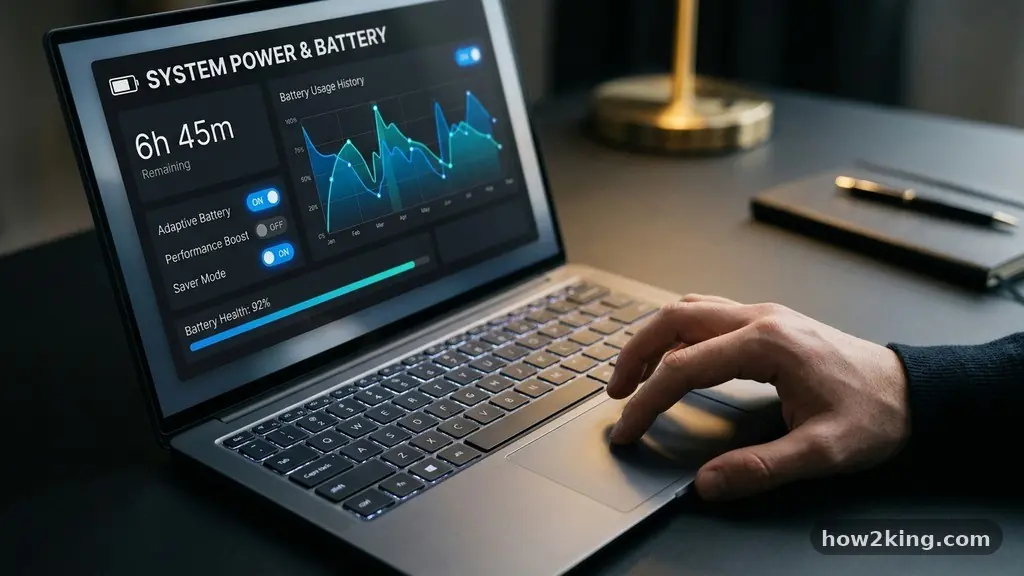
Making your laptop battery last longer during everyday use often comes down to small, consistent adjustments rather than single, dramatic changes. By managing how your device consumes energy, you can avoid the frustration of a dying machine while you are away from an outlet.
Understanding the interplay between your hardware and software is the key to maintaining a reliable mobile workstation. This article provides actionable steps to optimize your power consumption and extend the functional lifespan of your battery, ensuring you stay productive throughout your day.
The most effective way to address power drain is to adjust your system’s energy settings immediately. You should prioritize the “Battery Saver” mode, which restricts background activities and lowers screen brightness to conserve power.
Modern operating systems like Windows 11 and macOS have sophisticated tools that allow you to monitor which applications are consuming the most energy at any given moment. By identifying these culprits, you can stop them from running when they are not strictly necessary for your current tasks.
Mastering Power Management Settings
Every modern laptop comes with a built-in power management system designed to balance performance with longevity. Navigating to the settings menu allows you to select a power plan that favors efficiency over raw processing speed.
For most users, the “Balanced” or “Power Efficiency” mode is more than sufficient for browsing, word processing, and email. These settings automatically throttle the CPU when it isn’t under heavy load, which significantly reduces the energy pulled from your cells.
You should also look for specific battery saver triggers within your OS. Setting the system to activate power-saving features automatically when your charge drops below 20% ensures you never get caught off guard.
This mode often disables non-essential background syncs and reduces the frequency of push notifications. While you might notice a slight dip in responsiveness, the trade-off is often an extra hour of uptime during busy workdays.
Optimising Display and Hardware
The display is typically the single largest consumer of power on any laptop. Lowering your screen brightness by even 20% can have a measurable impact on how long your device stays awake.
Most people keep their screens far brighter than necessary for indoor environments, which wastes significant energy. Additionally, shortening the time before your screen turns off when inactive helps minimize wasted power during brief breaks.
External peripherals also draw power directly from your laptop’s battery. If you have a mouse, keyboard, or external drive plugged in, the laptop has to power those devices through its internal circuitry.
Unplugging these accessories when they are not in use is a simple habit that preserves capacity. If you must use peripherals, consider choosing low-power wireless options that do not rely on a constant connection to your machine’s USB ports.
Understanding Battery Health and Longevity
Battery health refers to the total capacity your battery can hold compared to when it was brand new. Over time, chemical degradation is inevitable, but you can slow this process by avoiding extreme temperatures.
Keeping your laptop in a cool, dry place is essential, as heat is the primary enemy of lithium-ion technology. Never leave your device in a hot car or near a heating vent, as this can permanently reduce its capacity.
The “40-80 rule” is a common recommendation among hardware enthusiasts to extend the lifespan of your cells. This suggests that you should try to keep your charge level between 40% and 80% whenever possible.
Constantly charging to 100% or letting the battery drop to 0% puts unnecessary chemical stress on the internal components. Many modern laptops now include features in their management software to limit the maximum charge to 80% while plugged in.
| Strategy | Impact on Battery | Effort Level |
|---|---|---|
| Lowering screen brightness | High improvement | Low |
| Closing background apps | Medium improvement | Medium |
| Using Battery Saver mode | High improvement | Very Low |
| Limiting charge to 80% | Long-term health | Low |
Managing Background Applications
Many applications run processes in the background that you might not even be aware of. These tasks continuously ping servers, update data, or index files, all of which require energy.
You can view these processes in your Task Manager or Activity Monitor to see which ones are consuming the most CPU power. If an application is using significant resources while you aren’t actively using it, consider closing it or disabling its background permissions.
Web browsers are particularly notorious for consuming excessive energy. Having twenty tabs open, especially those with auto-playing videos or complex scripts, will drain your battery rapidly.
Use browser extensions that suspend inactive tabs or simply close pages you are finished with. If you are doing heavy work, try to limit your browser usage to the essential windows you need for your immediate task.
Closing Unnecessary Services
Other background services like cloud storage syncing can also be a major drain. While it is convenient to have your files synced, you might want to pause these updates when you are running on battery power.
You can usually find a “Pause Syncing” option in the icon tray of services like OneDrive or Dropbox. Enabling this during travel or meetings can save a surprising amount of power.
Bluetooth and Wi-Fi are also constant energy users, even when you aren’t actively transferring data. If you are working on an offline document, turning off these radios can provide a small but helpful boost in battery life. However, modern Wi-Fi chips are quite efficient, so this is only recommended if you are truly desperate for every last percentage point of power.
The Role of Software Updates and Drivers
Software developers frequently release updates that include performance improvements and better energy efficiency. An outdated driver might be causing your hardware to work harder than it needs to, resulting in faster drain.
Ensure that your operating system and your hardware drivers are up to date. You can consult the official Windows support resources to learn more about how system updates can help maintain your laptop’s efficiency.
Sometimes, a specific update might cause a bug that drains the battery faster than normal. If you notice a sudden, drastic drop in battery life immediately after installing a new update, look for community forums or support pages to see if others are experiencing the same issue.
In rare cases, rolling back a driver to a previous version might be necessary until a fix is released. Keeping your software lean and clean is a fundamental step in making your laptop battery last longer during everyday use.
Cleaning Up Your Startup Items
When your computer boots, it often launches a variety of programs that start running in the background immediately. Many of these are unnecessary for your daily workflow and continue to draw power throughout the day.
Reviewing your startup items is a quick way to reclaim energy and improve your laptop’s overall responsiveness. Removing programs from this list prevents them from consuming resources from the moment you turn on your machine.
* Disable auto-launching for communication apps like Discord or Slack.
* Remove unnecessary cloud sync utilities from the startup list.
* Stop printer software or peripheral managers from running at boot.
* Check for system-heavy background updaters for games or creative suites.
By trimming this list, you allow your laptop to use its power for the tasks you actually want to perform. This also speeds up your boot time, providing a dual benefit for your productivity. Most operating systems make it very easy to manage these startup items through the settings panel or the task manager, and you can always re-enable them if you find you need them later.
When to Replace the Battery
Despite your best efforts, every battery will eventually reach the end of its useful life. If you notice your laptop dying after only 30 or 60 minutes of light usage, the chemical capacity has likely degraded significantly.
Most manufacturers provide tools to check your battery health report, which can tell you exactly how much of your original capacity remains. If your battery health is below 70%, it may be time to consider a replacement.
Before buying a new battery, try a full calibration if your laptop allows it. This involves charging the battery to 100% and then letting it drain completely until the laptop shuts down, then charging it back to full.
This helps the internal sensors accurately gauge the true capacity of the cells. If you do need a replacement, always use a genuine part from the manufacturer to ensure safety and compatibility.
Common Questions About Battery Life
What kills laptop battery fast?
High screen brightness, excessive background applications, and high-performance settings are the top contributors to rapid battery drain. Additionally, multitasking with resource-heavy programs like video editors or web browsers with dozens of open tabs will deplete your charge quickly.
Is 2 hours of battery life good for a laptop?
For most modern laptops, two hours of battery life is quite low and usually indicates either a degraded battery or an inefficient software configuration. Unless you are performing extremely intensive tasks, you should expect four to eight hours of usage on a healthy, well-optimized machine.
What is the 40-80 rule for laptop batteries?
This is a recommendation to keep your battery charged between 40% and 80% to minimize chemical stress on the lithium-ion cells. By avoiding the extremes of 0% and 100%, you can significantly slow the rate at which your battery loses its total capacity over the years.
Is a 1% battery drain in 3 minutes normal?
This rate of drain would result in a total runtime of only 300 minutes, or five hours, which is actually within the normal range for many laptops. However, if you are doing nothing but looking at a static screen, this might be slightly high, suggesting you have background processes that could be optimized.
Does leaving a laptop plugged in ruin the battery?
Most modern laptops are designed to stop charging once they reach 100% and will run directly off the power adapter. While this does not “ruin” the battery, keeping it at 100% for months at a time can accelerate degradation, which is why many manufacturers offer “battery conservation” modes.
Optimising your device is a journey of small, intentional changes that pay off in the long run. By managing your display brightness, auditing your background applications, and being mindful of your charging habits, you are effectively making your laptop battery last longer during everyday use. These habits protect your hardware, save you from the stress of searching for an outlet, and keep your machine running smoothly for years to come.
Remember that a little maintenance goes a long way, and your battery will reward your care with better performance throughout your daily tasks. If you have any specific questions about your model, checking the manufacturer’s official support page is always a great next step.