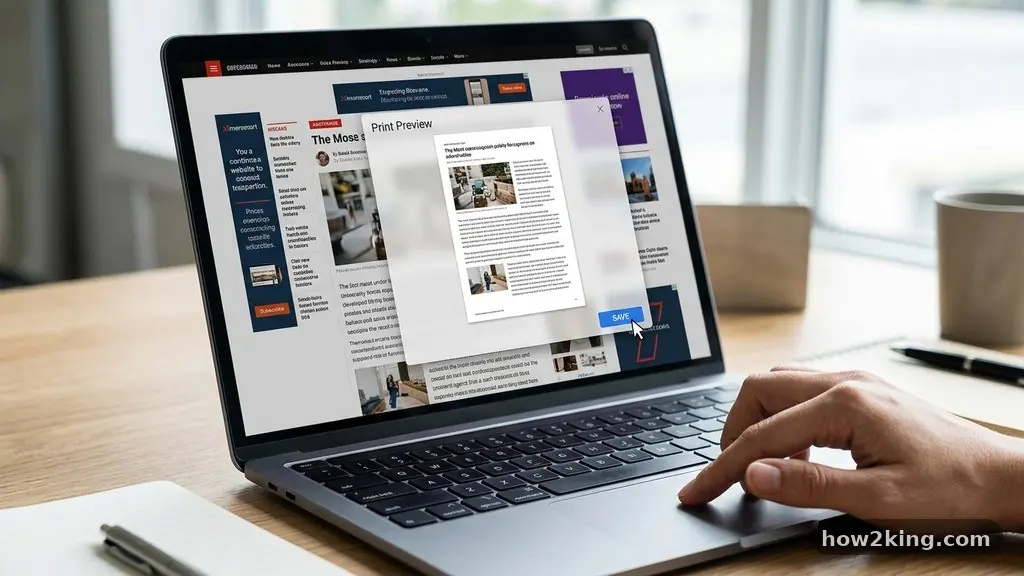
Mastering the art of turning a long web page into a clean PDF for later reading allows you to archive essential research, long-form journalism, or technical documentation without the clutter of sidebar advertisements. By transforming messy digital content into a static, readable document, you preserve the formatting exactly as you intended to see it.
This process is particularly useful for offline access, ensuring that your study materials or reference guides remain available even when your internet connection is unavailable or unstable. Whether you are using a desktop browser or a mobile device, several built-in features and external tools make this conversion simple, efficient, and highly effective for personal organization.
Using Browser Print Functions for Instant Conversion
The most straightforward way to save a web page as a PDF is through the native print dialog found in almost every modern browser. By selecting the “Print” command—usually triggered by pressing Ctrl+P on Windows or Command+P on macOS—you can redirect the output from your physical printer to a digital file.
Instead of selecting a hardware device, look for a destination option labeled “Save as PDF” or “Print to PDF” in the drop-down menu. This method is universal and requires no additional software or plugins to function effectively.
When you use this native feature, the browser attempts to strip away extraneous elements like navigation bars, social media sharing buttons, and intrusive pop-up ads. You will often see a preview window where you can adjust settings to ensure the layout remains clean and professional.
For example, toggling the “Background Graphics” option on or off can significantly change how much ink or visual weight the final document carries. This is an excellent way to capture long-form articles while maintaining the core text and images you actually need for your records.
Leveraging Reader Mode for Cleaner Output
Many modern browsers include a built-in “Reader Mode” that is specifically designed to isolate the main content of an article from the surrounding web noise. Before triggering the print function, activate this mode to see the text re-rendered in a distraction-free layout with optimized fonts and spacing.
Once the page is in this simplified view, selecting the print-to-PDF option will result in a much higher quality document than a standard screen capture. Because the browser has already parsed the text for you, the resulting PDF is often much easier to highlight, annotate, or search using standard document viewers.
This technique is particularly effective for long pages that contain dynamic elements or complex scripts that might otherwise break during a standard print job. By forcing the page into a clean, text-heavy format, you eliminate the risk of overlapping text or missing images that frequently occur with cluttered sites.
You can also use this step to adjust the font size or line height within the browser’s settings before committing the file to a permanent PDF. This level of customization ensures that your offline library is tailored exactly to your visual preferences and reading comfort.
Dedicated Browser Extensions for Advanced Control
If you find yourself frequently needing to convert web content, installing a dedicated extension can provide a more refined experience than standard print menus. Extensions like Print Friendly or various PDF capture tools offer granular control over exactly what gets included in your final file.
These tools often allow you to manually click on specific images or paragraphs you wish to delete before the PDF is generated. This is a massive time-saver when you want to remove repetitive footer sections, cookie consent banners, or unrelated sidebar widgets.
These extensions typically operate by creating a temporary, simplified version of the webpage that is optimized for printing. They handle the conversion logic at the server level or through a local script, which often results in superior layout preservation compared to the browser’s default engine.
Many of these tools also provide options for adjusting margins, page breaks, and paper sizing, which is vital if you intend to print the PDF later. For heavy researchers, the ability to save these files directly to cloud storage services like Dropbox or Google Drive is an added layer of convenience that standard browser printing lacks.
Mobile Solutions for On-the-Go Archiving
Turning a long web page into a clean PDF for later reading is not limited to desktop computers, as mobile operating systems have become increasingly sophisticated. On iOS, you can use the “Share” button in Safari to access the “Markup” or “Print” options, both of which allow for an immediate PDF export.
Android users can achieve the same result through the “Share” menu in Chrome, selecting “Print” and then choosing “Save as PDF” from the printer list. These mobile workflows are perfect for capturing recipes, travel itineraries, or quick-reference guides while you are away from your primary workstation.
While mobile screens are smaller, the resulting PDF files are fully functional and will look identical when opened on a larger desktop monitor later. Keep in mind that some mobile browsers may struggle with infinite-scrolling pages, where content only loads as you scroll down.
In these cases, it is often best to scroll to the bottom of the page first to ensure all content is loaded before triggering the PDF conversion. Taking this small step ensures that you do not end up with a document that cuts off abruptly in the middle of an important paragraph or list.
Comparing Methods for Web to PDF Conversion
Choosing the right method depends largely on the complexity of the website and how much time you are willing to invest in the cleanup process. Some pages are highly dynamic and require a specialized conversion tool to handle nested frames or interactive charts, while others are simple text-based articles that work perfectly with a basic print-to-PDF command. To help you decide, consider the following comparison of common approaches:
| Method | Best For | Level of Customization |
|---|---|---|
| Browser Native Print | Quick, simple articles | Low |
| Reader Mode + Print | Text-heavy long reads | Medium |
| Browser Extensions | Complex or cluttered pages | High |
| Dedicated API Services | Batch processing/Automation | Very High |
Each of these approaches serves a different purpose, and many power users keep a combination of these tools in their digital toolkit. Using a browser extension for daily heavy-duty archiving is often more sustainable than manually editing pages in Reader Mode. Meanwhile, for those interested in the technical side of how web content is structured, you can learn more about the standards behind these documents by visiting the World Wide Web Consortium, which maintains the core standards for how browsers interpret and render digital information.
Automating Your Archiving Workflow
For those who regularly collect information, manual conversion can become tedious, leading to the use of automation tools. Various web-to-PDF APIs allow developers or power users to build scripts that automatically convert saved links into clean, formatted documents.
These services are particularly useful if you are managing a personal knowledge base or a digital library of research papers. By setting up a simple automation rule, you can send URLs to a cloud folder, where they are converted and stored as PDFs without you ever having to open the browser.
Automation is also a great way to ensure that your archives are consistent in their look and feel. You can define custom CSS rules that the API will apply to the page before conversion, ensuring that every document matches your preferred font size, color scheme, and margin settings.
While this requires a bit more technical setup, the long-term payoff is a perfectly curated archive that requires zero manual intervention. This level of organization is ideal for professionals who need to maintain a reliable, offline record of industry trends, news, or technical documentation.
Frequently Asked Questions
Why does my PDF look different from the live website?
The discrepancy usually occurs because websites use responsive design, which adjusts layout based on screen width. When you save as a PDF, the browser often applies a static “print” stylesheet that hides interactive elements like videos and menus. This is intentional, as it makes the document more readable, but it means you lose the dynamic features of the original page.
Can I save a page that requires a login?
Most browser-based print functions will capture the page as you see it while logged in. However, some secure sites specifically block printing or use JavaScript to prevent content capture. If you cannot print a page, you may need to use a screen capture tool to take an image of the content, though this will not be searchable text.
How do I avoid cutting off content on long scrolling pages?
Some pages use “lazy loading” where images or text only appear as you scroll. Before you trigger the print command, ensure you have scrolled to the very bottom of the page so that all elements have been fetched by the browser. If the page is extremely long, you might need to use a specialized extension designed to capture the entire scrollable area.
Does converting to PDF save the advertisements?
Usually, modern browser print functions and “Reader Mode” are very effective at stripping out ads. If you are still seeing ads, it is likely because the website has embedded them directly into the main content block. Using a dedicated extension with “clean-up” features is the best way to remove these stubborn elements before the final save.
Can I edit the PDF after I save it?
Yes, a PDF is a standard file format that can be edited with various tools like Adobe Acrobat, Preview on macOS, or online PDF editors. You can use these tools to remove extra pages, combine multiple articles into a single document, or add your own annotations. This is a great way to finalize your collection once you have captured the raw content.
Preserving Your Digital Knowledge
Turning a long web page into a clean PDF for later reading is an essential skill for managing the vast amount of information we encounter every day. By utilizing tools like native print functions, reader modes, and browser extensions, you can transform chaotic digital noise into organized, permanent files. These archives act as a personal library, ensuring that the content you value remains accessible regardless of link rot or future website changes.
Start by cleaning up your next long-form article using these methods, and you will quickly see how much more manageable your digital research becomes. Maintaining a habit of saving important pages ensures that your knowledge stays with you, stored in a format that is ready for whenever you need to reference it again.