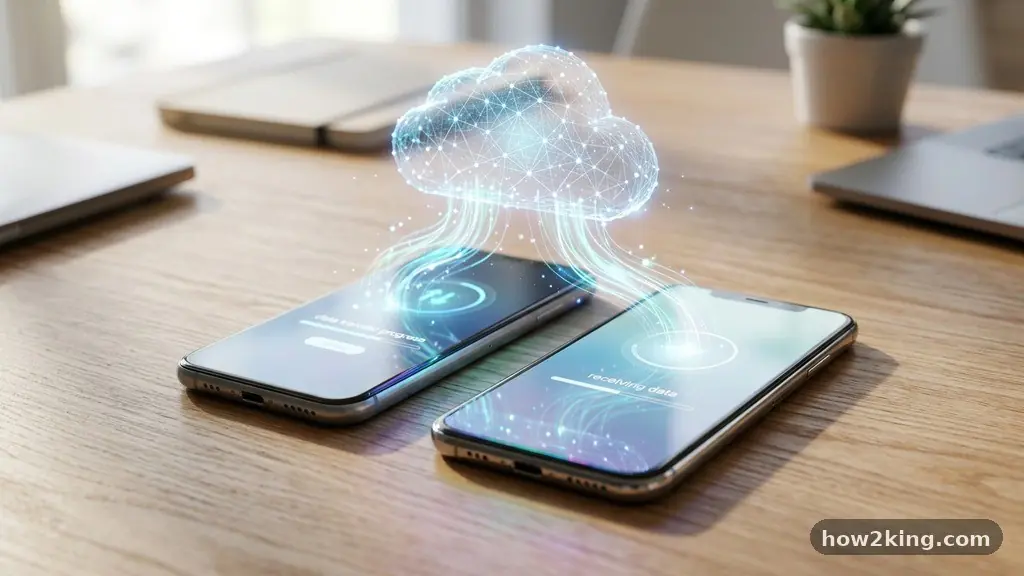
Learning the nuances of transfering Contacts to a New Phone Without Re-Entering Them saves hours of tedious manual labor. Whether you are upgrading to the latest flagship or switching between operating systems, modern digital tools have replaced the era of hand-typing names and numbers. By leveraging cloud synchronization and native migration utilities, your entire address book can move between devices in mere minutes.
This article explores the most reliable methods to ensure your digital connections remain intact during your next upgrade. You will discover how to safely move your data while maintaining privacy and accuracy across all your mobile accounts.
Utilizing Cloud Synchronization for Instant Transfers
The most efficient way to keep your address book current is through cloud synchronization. By tethering your contacts to a primary account, you ensure that your data exists independently of the hardware in your hand. When you sign into a new device using the same credentials, your information populates automatically without any extra steps.
For Android users, the backbone of this process is your Google account. By toggling the sync feature within your system settings, you create a real-time bridge between your phone and Google Contacts.
This means any edit you make on your current device instantly reflects in the cloud. When you set up your new phone, simply adding that same Gmail address triggers an immediate download of your entire list.
Apple users rely on iCloud to achieve the same result. By navigating to the settings menu and ensuring that the contacts toggle is set to “On” under your Apple ID, you secure your data to your personal account. Apple’s ecosystem is particularly adept at this, often populating your new iPhone with your contact library before you even reach the home screen during the initial setup wizard.
Exporting via vCard and Manual File Transfers
Sometimes, you might prefer a manual approach that does not rely on cloud services. Exporting your data as a vCard or a .vcf file provides a portable backup that you can store locally or send via email. This method is exceptionally useful if you are moving between devices that do not share a common cloud provider.
To start, open your contact application and look for the “Export” or “Share” option in the settings menu. Choosing to export as a vCard will generate a single file containing all your contact records. You can then save this file to your internal storage, upload it to a private folder in Google Drive, or send it to yourself as an email attachment.
Moving this file to your new phone is straightforward. Once the file is on the new device, simply tapping it usually prompts the operating system to import the contents directly into your phone’s directory. This approach acts as a reliable safety net, ensuring you have a physical copy of your data that you can access regardless of internet connectivity or account sync status.
Leveraging Manufacturer Migration Tools
Major smartphone manufacturers have developed proprietary software to simplify the transition process for their customers. These tools are designed to handle everything from photos and messages to your entire address book. Using these utilities often provides the most comprehensive results because they are optimized for the hardware you are using.
Samsung Smart Switch is a prime example of this technology. It allows you to connect your old phone to your new Samsung device via a USB cable or a wireless connection.
The app scans your old phone for all relevant data and migrates it to the correct locations on the new handset. It removes the guesswork and handles the formatting of contact fields automatically.
Similarly, Apple provides the Move to iOS app, which is available on the Google Play Store. This software is specifically engineered to bridge the gap between Android and iPhone. It facilitates a secure connection between the two devices, allowing you to transfer your contacts, message history, and even camera photos without needing to manually back up files to a computer first.
Comparing Common Transfer Methods
Understanding which method fits your situation depends on your specific hardware and technical comfort level. The table below outlines the primary differences between these approaches to help you decide which is best for your situation.
| Method | Best For | Complexity |
|---|---|---|
| Cloud Sync | Frequent upgraders | Very Low |
| Manufacturer Tools | Cross-platform switches | Low |
| vCard Export | Offline/Manual control | Medium |
| SIM Card Export | Legacy devices | High |
Each of these methods carries distinct benefits depending on your setup. Cloud sync is the standard for most modern users, providing a “set it and forget it” experience. However, if you are migrating from a very old device or a feature phone, you may need to look toward older technologies like SIM storage or Bluetooth file sharing to get the job done.
Handling Cross-Platform Migrations
Moving data between different operating systems—such as shifting from Android to iOS or vice versa—presents unique challenges. While native tools like Move to iOS handle much of the heavy lifting, you must ensure your accounts are properly configured. If your contacts are tied to a specific local folder rather than a cloud account, they will not transfer via standard sync.
Always check that your contacts are saved to a cloud-based account before attempting a migration. If you see contacts labeled “Device” or “Phone,” they are stored locally and will not sync with your Google or Apple ID. You can usually move these to your cloud account by selecting the “Move to Account” option in your contact app settings.
For those who want to learn more about the technical standards behind these files, you can read about the vCard format specifications provided by the IETF. Understanding these standards helps when you encounter compatibility issues. It ensures that your contact fields—like middle names or custom labels—are preserved accurately during the conversion process.
Managing Contact Backup and Security
Your address book is one of the most personal data sets you own. When planning to transfer contacts to a new phone without re-entering them, security should be a primary consideration. Avoid using third-party applications that require you to upload your full contact list to an unknown server to “clean” or “merge” your data.
Instead, stick to official tools provided by your device manufacturer or major service providers. If you are using a SIM card as a bridge, remember that SIM cards have limited storage capacity and can only hold basic name and number fields. You will likely lose email addresses, profile photos, and physical addresses if you rely solely on SIM storage.
Always perform a full backup before wiping your old device. Whether it is a cloud backup or a local encrypted backup on a computer, having a secondary copy gives you peace of mind. If a transfer fails, you can simply restore the backup and try again without losing any information.
Frequently Asked Questions
What happens if I forget to sync my contacts before wiping my old phone?
If you have already cleared your old device without performing a backup or sync, you may be able to recover data if you previously synced that device to a cloud service. Log into the web interface for your email provider, such as Google Contacts or iCloud.com, to see if your data is still stored there. If you never enabled syncing or performed an export, the data might be permanently lost unless you have a separate local backup.
Can I transfer contacts using a QR code scanner?
While some specific apps allow you to share a single contact via a QR code, this is not a practical way to move an entire library. QR codes are limited in the amount of data they can hold, making them better suited for sharing a digital business card rather than a full address book. Stick to cloud sync or manufacturer migration tools for mass transfers.
Why are my contact photos missing after the transfer?
Contact photos are often stored locally on the device’s internal storage rather than on the SIM card or the primary cloud sync server. If you notice photos are missing, it is usually because the sync protocol only moved the text data and not the high-resolution image files. You may need to manually re-assign photos or use a manufacturer-specific transfer tool that supports image migration.
How do I know if my contacts are saved to the cloud?
Open your contact app and check the settings or the “Accounts” section. If you see your Google, iCloud, or Outlook account listed under the sync settings, your contacts are likely being backed up. If you see a category labeled “Local” or “Device,” those contacts are stuck on your phone and will not follow you to a new device unless you export them first.
Is it possible to merge duplicate contacts during the transfer?
Most modern contact applications have a built-in “Merge and Fix” feature. After you have completed your transfer, check the settings of your contact app on the new phone. You will likely find an option to scan for duplicates, which will automatically consolidate entries that have the same name or phone number.
Ensuring a Smooth Transition
Mastering the process of transfering Contacts to a New Phone Without Re-Entering Them is a vital skill in our modern digital lives. By prioritizing cloud-based solutions, you insulate yourself from hardware failure and simplify every future upgrade. Always remember to verify your sync status before initiating a transfer to ensure no data is left behind on your old hardware.
Taking the time to organize your contacts before the move also provides an excellent opportunity to clean up your list. Delete outdated entries and ensure your primary contacts are properly labeled.
With these steps completed, your new device will feel like home the moment you power it on. Feel free to reach out if you encounter specific issues with your migration process.