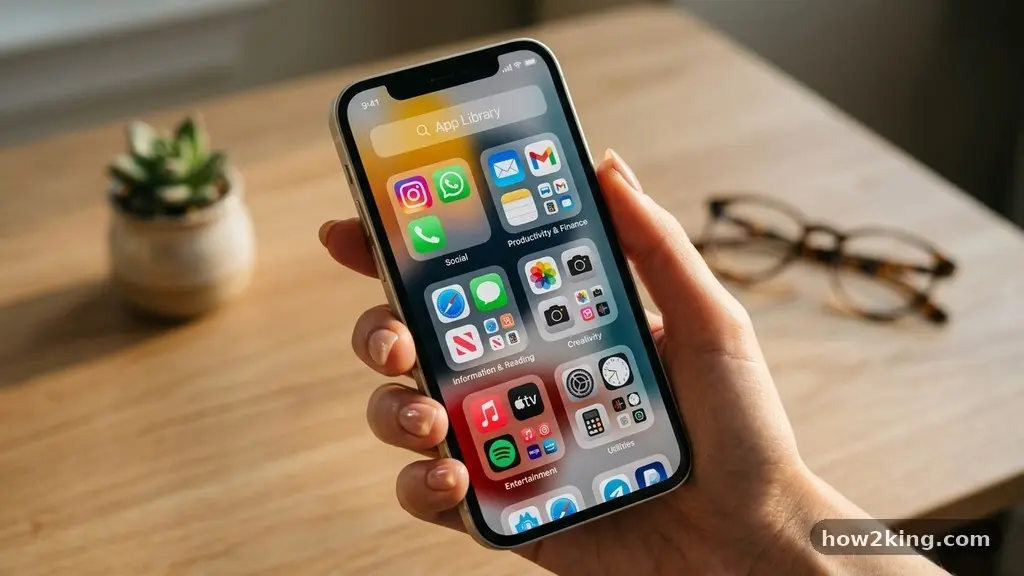
Successfully organizing your phone home screen without deleting important apps is a simple way to reclaim your digital focus. By mastering native software features like app libraries, folders, and hidden pages, you can clear visual clutter while keeping your essential tools just a few taps away.
You don’t need to sacrifice functionality to achieve a clean, minimalist aesthetic that actually helps you get things done. This approach focuses on hiding what you rarely use and prioritizing the tools that truly serve your daily routine, ensuring your device feels like a helpful assistant rather than a source of constant distraction.
Mastering the App Library
The most effective way to clean up your device without losing data is to rely on the built-in library features found on modern smartphones. Both iOS and Android provide a dedicated space where every installed program lives, meaning you no longer need to display every single icon on your main pages.
When you remove an icon from your view, the system keeps the software fully installed and updated in the background. You can access these programs by searching or browsing categories, which often organizes them better than you could do manually.
To make the most of this, think of your main pages as a curated workspace. Only the programs you use multiple times per day deserve a spot on your primary screen. Everything else, from banking tools to travel utilities, can live safely in the library.
If you ever need to use one of these secondary programs, a quick swipe or search will bring it up instantly. This shift in mindset turns your phone into a streamlined toolset rather than a dumping ground for every download you have ever made.
Utilizing Folders for Categorization
If you prefer having your tools visible but want to save space, grouping them into folders is the standard solution. You can create a folder by simply holding an icon and dragging it on top of another one.
This action automatically creates a new container that you can name based on the category of the programs inside. For instance, creating a “Finance” or “Utilities” folder allows you to consolidate ten icons into a single, clean square.
The key to keeping this effective is to avoid over-stuffing your folders. If a folder contains more than two pages, finding a specific item becomes a chore rather than a convenience. Aim for logical groupings that match your mental model of how you use your device.
You might choose to sort by function, like “Work” and “Personal,” or by the frequency of use. Keep your most important items on the first page of the folder to ensure you can reach them with a single tap.
Hiding Entire Home Screen Pages
Modern mobile operating systems allow you to hide entire pages of icons, which is a powerful way to declutter without deleting anything. This feature is particularly useful if you want to keep specific sets of programs for different contexts, such as a “Work” page and a “Weekend” page.
By long-pressing on an empty area of your background, you can enter the editing mode and tap the page indicators at the bottom. From there, you can uncheck the pages you want to hide.
This method keeps all your programs installed and ready, but they remain invisible until you decide to toggle them back on. It is a fantastic strategy for those who want a completely different look for their device depending on the time of day.
You can hide your email and task management pages after office hours to minimize stress. When the next morning arrives, you can simply uncheck the box to bring your professional tools back into view.
Strategic Widget Placement
Widgets are often misunderstood as space-wasters, but they can actually help you organize your home screen by providing information without requiring you to open the app. Instead of having a list of individual icons for your calendar, tasks, and weather, you can use a single, well-placed widget.
This reduces the number of icons you need to manage while keeping the most critical data visible at a glance. You can find more information on how to manage these features through the official Apple support documentation.
When placing widgets, consider the “thumb zone” of your device. Place your most essential interactive widgets, like a music controller or a quick-note button, near the bottom where your hand naturally rests.
Larger widgets can act as anchors for your layout, providing a clean visual break between rows of icons. By using a mix of small, medium, and large widgets, you can create a balanced, professional look that prioritizes information over simple icon launching.
Comparing Organization Methods
Deciding which strategy works best for you depends on your personal habit of interacting with your technology. Some users prefer the search-first approach, while others enjoy the visual predictability of folders. The following table compares these common methods to help you decide which one fits your workflow.
| Method | Best For | Key Benefit |
|---|---|---|
| App Library | Minimalists | Zero clutter, instant search |
| Folders | Categorizers | High visibility, easy grouping |
| Hidden Pages | Context-switchers | Complete separation of tasks |
| Widgets | Data-heavy users | Information without opening |
Automating Your Layout
If you find that your icons drift into chaos, you might benefit from using the built-in sorting features provided by your phone’s software. Many Android devices have an “auto-fill” or “sort” option that shifts icons to fill empty gaps automatically.
While iOS is more manual, you can use third-party shortcuts or simple drag-and-drop habits to keep things aligned. The goal is to reach a state where you don’t have to think about where a program is located.
Consistency is the most important factor in keeping your phone organized over time. If you move an icon to a new folder, make sure to do it immediately after downloading it.
Don’t let new items sit on your home screen for days, as they will quickly accumulate and negate your hard work. By treating your home screen as a permanent, curated space, you ensure that your digital environment remains calm and productive.
Frequently Asked Questions
Is there a fast way to organize an iPhone home screen?
The fastest way is to use the “Remove from Home Screen” option, which moves the icon to the App Library without deleting the software. You can do this by long-pressing an icon and selecting the remove option. This clears your screen in seconds.
How do I hide apps on Android without deleting them?
Most modern Android launchers, such as those from Samsung or Google, have a “Hide apps” setting located within the home screen settings menu. You can select the specific items you want to hide, and they will disappear from your view while remaining fully functional in your drawer.
Can I organize my home screen alphabetically?
While you cannot force your main pages to stay in alphabetical order automatically, the App Library on iOS does this by default. On Android, your app drawer is usually sorted alphabetically, which is a great place to look if you are having trouble finding a specific tool.
What is the best way to keep my home screen from getting cluttered?
The best habit is to perform a monthly audit of your home screen. Move any programs you haven’t touched in the last thirty days into a folder or the app library. If you find you still don’t use them after another month, you can then decide if they are worth keeping at all.
Conclusion
Taking control of your digital environment is an empowering step toward reducing daily friction. By learning the nuances of organizing your phone home screen without deleting important apps, you create a space that supports your goals rather than distracting you from them. Whether you choose to lean heavily on the App Library, categorize everything into folders, or use hidden pages to manage your work-life balance, the result is a more peaceful and efficient experience.
Start by auditing your most-used items today and move the rest into the background. You will likely find that having fewer icons actually makes you more productive and helps you find what you need with much greater speed.