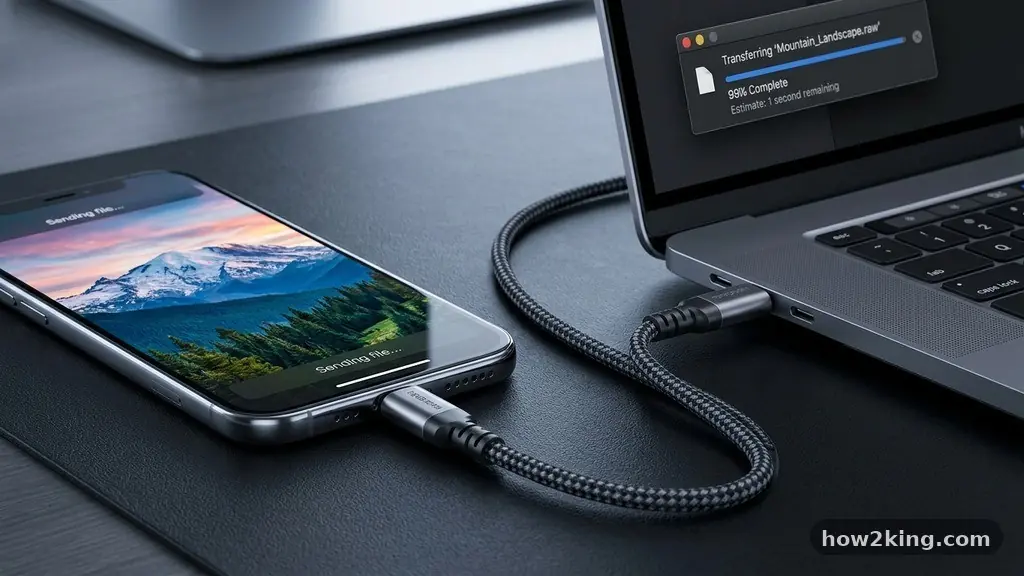
Successfully moving photos from your phone to a computer without losing quality comes down to avoiding compression services that shrink your files for faster delivery. Many social media platforms and instant messaging apps automatically resize your images, which strips away the high-resolution data you need for printing or professional editing.
By using direct wired connections or uncompressed cloud storage transfers, you ensure that every pixel remains intact. Mastering the art of moving photos from your phone to a computer without losing quality ensures your digital memories stay as sharp as the day you captured them, preserving the original metadata and color depth for years to come.
The Importance of File Integrity During Transfer
When you capture an image on a modern smartphone, the device records a massive amount of data. This includes not just the visual pixels, but also EXIF data, which logs the camera settings, location, and date of the shot.
When you use a standard text message or a social media upload to move these files, the platform often compresses them to save bandwidth. This process is destructive, meaning the deleted information cannot be retrieved once the transfer is complete.
To maintain professional-grade quality, you must bypass these intermediary services entirely. A direct transfer preserves the original file format, whether it is a standard JPEG or a more advanced format like HEIC or RAW.
If you intend to print these images or display them on a high-resolution monitor, maintaining this raw integrity is non-negotiable. Even a slight drop in bit rate can lead to visible artifacts or “noise” in darker areas of your photos.
Using a USB Cable for Direct Transfers
The most reliable method for moving photos from your phone to a computer without losing quality involves a physical USB cable. This creates a direct bridge between your hardware, allowing you to copy files exactly as they exist on your internal storage. For most users, this is the gold standard because it avoids the limitations of internet speed and cloud storage quotas.
When you connect your device, your computer treats your phone like an external hard drive. On a Windows PC, you can simply browse the device folders to locate your DCIM directory, which holds all your camera-captured media.
On a Mac, you might use the Image Capture app to import these files directly to your drive. This method is immune to the compression algorithms that plague wireless sharing apps.
Managing Cloud Storage Without Compression
If a cable is not available, cloud services are a viable alternative, provided you configure them correctly. Many people use services like Google Photos or iCloud to sync their media, but these services often default to “High Quality” or “Storage Saver” modes.
These settings are designed to compress your images to save space on your account. To ensure you are moving photos from your phone to a computer without losing quality, you must change your settings to “Original Quality.”
In the settings menu of your cloud app, look for the backup section. Ensure the upload size is set to store the full-resolution file.
Once the upload is complete, you can log into the service via a web browser on your computer and download the files. Because you uploaded the original version, the file you download to your desktop will be identical to the one on your phone.
Comparing Common Transfer Methods
Choosing the right method depends on your hardware and the volume of files you need to move. Each approach has distinct trade-offs regarding speed, convenience, and file preservation. The following table provides a breakdown of the most popular methods for moving your media safely.
| Method | Quality Preservation | Speed | Hardware Required |
|---|---|---|---|
| USB Cable | Perfect (Lossless) | High | Cable + Computer |
| Cloud (Original Quality) | Perfect (Lossless) | Low (Internet dependent) | Stable Wi-Fi |
| Bluetooth/AirDrop | Good (Usually lossless) | Medium | Proximity |
| Email/Messaging Apps | Poor (Compressed) | Fast | Data Connection |
Organizing Your Media After the Transfer
Once your files are safely on your computer, the next challenge is management. Many users find that moving photos from their phone to a computer without losing quality is only half the battle.
If you don’t have a folder structure, your high-quality files will quickly become impossible to find. Create a consistent naming convention, such as “YYYY-MM-DD_EventName,” to keep your library searchable.
You should also consider a backup strategy for your computer. External hard drives are an excellent way to keep a second copy of your high-resolution images.
According to the Library of Congress digital format guidelines, storing files in non-proprietary formats like TIFF or DNG can also help ensure long-term accessibility. By organizing your files immediately after transfer, you protect your work from accidental deletion or drive failure.
Troubleshooting Common Connection Issues
Sometimes, your computer might not recognize your phone when you plug it in. This is often a result of security permissions.
Most smartphones require you to manually “trust” the computer or select “File Transfer” mode on the phone’s screen before the storage becomes visible. If you don’t see this prompt, try swapping the USB cable for a high-quality data-certified version.
Some charging cables are designed only for power and do not carry data signals. If you are struggling to see your device, ensure you are using a cable capable of transferring data.
On Windows, you may also need to install specific drivers if the device is not detected automatically. Once these permissions are granted, your computer will quickly index the files, allowing you to select and move your photos with ease.
Essential Tools for Professional Workflows
For photographers or those who capture large volumes of high-resolution video, simple drag-and-drop might not be enough. You may want to use dedicated software that handles the metadata migration more effectively.
Tools like Adobe Lightroom or professional file-management suites can import your media while applying tags and keywords during the process. These programs are specifically built for moving photos from your phone to a computer without losing quality while maintaining a logical database.
* Adobe Lightroom: Excellent for syncing RAW files and managing edits.
* Image Capture (macOS): A lightweight, built-in tool that avoids the bloat of larger software.
* Windows Photos App: A simple, effective interface for importing from connected devices.
* External SSD: The best physical storage for holding massive, high-res photo collections.
Frequently Asked Questions
Why do my photos look blurry after I send them to my computer?
You are likely using a messaging app or social media platform that automatically compresses images to speed up delivery. To avoid this, use a USB cable or a cloud service set to “Original Quality” to ensure the file remains untouched during the transfer process.
Is there a difference in quality between iPhone and Android transfers?
The underlying file format might differ—such as HEIC for iPhone and JPEG for Android—but both can be transferred without quality loss. The key is to avoid using services that convert these files to lower-quality JPEGs during the transit process.
Does using a USB cable really improve the quality?
Yes, because a USB cable creates a direct file-system connection. It transfers the exact binary data of the image file from your phone’s storage to your computer’s hard drive without any intermediary processing or compression.
Can I use Bluetooth to transfer photos without losing quality?
While Bluetooth can transfer files, it is generally much slower than a USB connection and can be prone to interruptions. For large batches of high-resolution photos, it is better to use a wired connection to ensure the integrity of your files is maintained throughout the process.
What is the best way to back up my phone’s photos permanently?
The safest method is a 3-2-1 backup strategy: keep three copies of your data, on two different media types, with one copy stored off-site. For photos, this means having them on your phone, on your computer, and on an external drive or secure cloud storage.
Maintaining Your Digital Archive
Successfully moving photos from your phone to a computer without losing quality is a habit that pays off every time you look back at your collection. By avoiding the temptation of quick, compressed sharing methods, you ensure that your images remain crisp, vibrant, and ready for any future use. Whether you are archiving family milestones or professional projects, the extra few minutes spent using a cable or a cloud-syncing service in original mode will make a world of difference.
Start by auditing your current cloud settings and finding a reliable USB cable for your next transfer session. Once you see the difference in clarity and detail, you will never want to go back to the compressed versions.
If you have questions about your specific device or need help setting up a backup routine, feel free to dive into your device’s manual or reach out to community forums for further technical support. Consistent, high-quality management is the best way to safeguard your digital history for years to come.