Learning the nuances of troubleshooting a Wi-Fi connection before calling your internet provider can save you hours of waiting on hold and potentially unnecessary service fees. Most connectivity issues stem from minor hardware glitches or environmental factors rather than a total breakdown of your external service line. By systematically checking your local equipment, you can often restore your internet access in minutes.
This process involves verifying your physical connections, refreshing your local hardware, and analyzing signal patterns. Mastering these basic steps provides you with the confidence to manage your home network effectively while ensuring you only reach out to technical support when a professional intervention is truly required.
The Power Cycle Process
The most effective first step when troubleshooting a Wi-Fi connection before calling your internet provider is the classic power cycle. Many people assume this is a cliché, but it is actually a vital way to clear the volatile memory within your gateway or router. Over time, these devices can accumulate temporary errors or memory leaks that throttle performance or drop signals entirely.
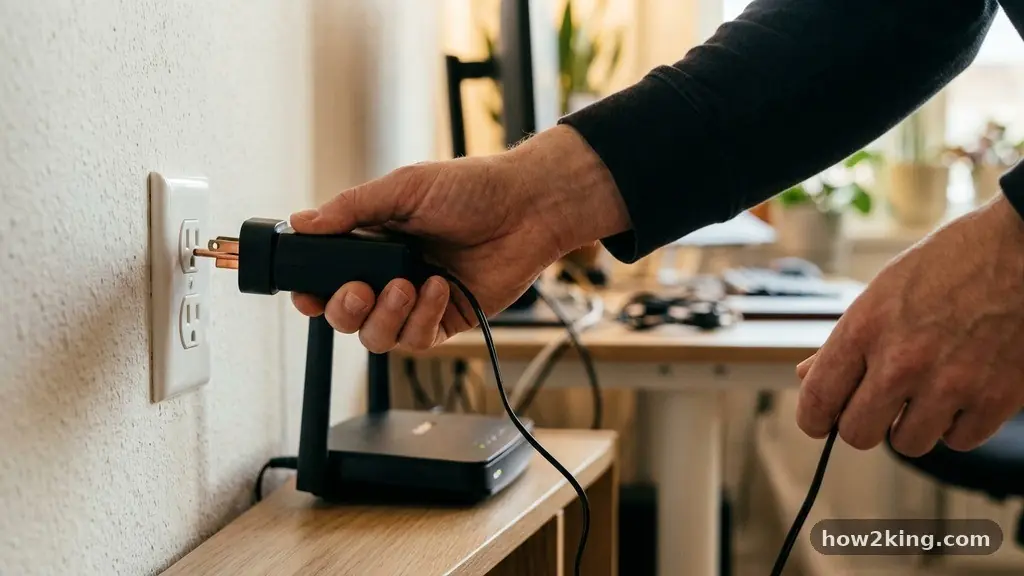
To perform a proper power cycle, unplug the power cable from both your modem and your wireless router. Leave them disconnected for at least 30 seconds to ensure all capacitors have fully discharged.
Plug the modem back in first and wait for the status lights to stabilize, which usually takes between two and five minutes. Once the modem is fully online, plug in your router and wait for it to broadcast the network signal.
If you are using a combined gateway device, the process is even simpler. Unplug the single power cord, wait the recommended interval, and let it reboot completely.
You should avoid simply pressing the reset button, as that often reverts your router to factory settings and wipes your custom SSID and password. A clean power cycle preserves your configuration while clearing the device’s internal state.
Checking Physical Connections
If a reboot does not solve the issue, you must inspect the physical infrastructure of your home network. Loose, damaged, or poorly seated cables are common culprits behind intermittent drops.
Start by tracing the coaxial or fiber optic line from the wall outlet into your modem. Ensure the connector is screwed on tightly or clicked firmly into place.
Next, examine the ethernet cable connecting your modem to your router. If you notice any fraying, kinks, or exposed wires, replace the cable immediately with a Cat6 or higher standard cord.
Even if the cable looks fine, try swapping it with a known working spare to rule out a faulty internal wire. A poor connection here can create high packet loss, making your connection appear slow or unstable.
You should also check the power supply itself. Sometimes, the power adapter for a router can fail to deliver consistent voltage, causing the device to restart randomly.
If your router feels unusually hot or the lights flicker when you touch the cord, the power brick might be failing. Using the original power adapter provided by the manufacturer is always safer than using a generic replacement.
Analyzing Signal Interference
Wireless signals are essentially radio waves that can be disrupted by physical obstacles and electronic devices. If your router is tucked inside a metal cabinet, behind a television, or near a large fish tank, your signal strength will suffer significantly. Water and metal are particularly effective at blocking or reflecting Wi-Fi signals, leading to dead zones in your home.
You can often improve performance simply by relocating the router to a central, elevated position. Keeping the device in an open space allows the antennas to distribute the signal more effectively across your living area. If you live in a multi-story home, placing the router on the main floor rather than in a basement or attic usually provides better coverage.
Other household electronics can also cause signal interference. Devices like cordless phones, microwave ovens, and even baby monitors often operate on the same 2.4GHz frequency as many routers.
If your connection drops whenever you use the microwave, you have likely identified the source of your interference. Moving your router away from these sources can stabilize your connection instantly.
Managing Network Channels
When you live in an apartment building or a dense neighborhood, your neighbors’ networks might be competing for the same airwaves. This phenomenon, known as channel congestion, can severely limit your bandwidth. Most routers default to “auto” mode, but they often fail to switch to the least crowded channel effectively.
You can log into your router’s administrative interface to see which channels are currently in use. Using a simple Wi-Fi analyzer app on your smartphone can show you the congestion levels for both the 2.4GHz and 5GHz bands. Switching your router to a less populated channel can lead to a dramatic increase in speed and reliability.
For those using the 2.4GHz band, channels 1, 6, and 11 are the only non-overlapping options. If you are currently on channel 3 or 4, you are likely suffering from interference from multiple adjacent networks. Manually selecting one of these three primary channels is a proven method for reducing collisions and improving your overall throughput.
Firmware and Driver Updates
Your networking hardware relies on software, and that software requires occasional maintenance. A firmware update can patch security vulnerabilities, improve compatibility with newer devices, and fix known bugs that cause connection drops. Many modern routers handle this automatically, but older models may require you to check for updates manually.
To update your firmware, log into your router’s web interface using the default IP address found on the device label. Look for a section labeled “System Tools,” “Advanced,” or “Administration.”
If an update is available, download it and let the router install the software. Never turn off the power during this process, as it could permanently damage your router.
You should also consider the network adapter on your computer. If only one device in your house is struggling to stay connected, the issue might be its specific driver rather than the router.
Visit the manufacturer’s website to download the latest network adapter drivers for your operating system. Keeping these drivers current ensures your device communicates efficiently with the router.
Understanding Common Network Issues
It is helpful to categorize common issues to determine if you are looking at a hardware, software, or service-level problem. This table highlights typical symptoms and their most likely causes when troubleshooting your home network.
| Symptom | Likely Cause | Recommended Action |
|---|---|---|
| No internet on any device | Modem or ISP outage | Check modem lights and ISP status page |
| Slow speeds on one device | Device driver or distance | Update driver or move closer to router |
| Intermittent drops | Signal interference or loose cable | Check physical cables and change channels |
| Cannot join Wi-Fi network | Incorrect password or SSID hidden | Forget network and re-enter credentials |
If you find that the issue persists across all devices and a power cycle fails, you should verify if your internet provider is experiencing a regional outage. Most providers now offer mobile apps or websites that track local service status. You can find more details on how to manage your connection settings through the Federal Communications Commission’s consumer guides.
DNS and IP Configuration
Sometimes the connection is active, but your computer cannot translate domain names like “google.com” into the correct IP address. This is a DNS issue.
By default, your router uses the DNS servers provided by your ISP, which can occasionally become slow or unresponsive. Changing your DNS settings to a public provider, such as Google Public DNS or Cloudflare, often results in faster page loading times.
You can change these settings either on your individual computer or directly in your router’s DHCP configuration page. Many users find that configuring this at the router level provides a benefit to every device on the network. It is a quick change that frequently resolves “server not found” errors.
If you suspect your local IP address is causing a conflict, you can perform a basic ping test. Open your terminal or command prompt and type “ping 8.8.8.8” to see if your packets are reaching the public internet. If the ping succeeds but you cannot load websites, your issue is almost certainly related to your DNS settings rather than your physical connection to the ISP.
Frequently Asked Questions
How do I know if the problem is my router or my modem?
If you have a separate modem and router, connect your computer directly to the modem using an ethernet cable. If you can access the internet, your modem is fine, and the problem is likely with your router. If you still have no internet, the issue is with the modem or the service line.
What do the status lights on my router mean?
Most routers use a solid green or white light to indicate a healthy connection. A blinking orange or red light usually indicates a failed connection to the ISP or a hardware boot error. Consult your specific router manual for a breakdown of your device’s unique light patterns.
Should I use a 2.4GHz or 5GHz band?
The 2.4GHz band offers better range and is better at penetrating walls, while the 5GHz band provides much faster speeds but has a shorter range. Use 5GHz for streaming and gaming devices that are near the router, and reserve 2.4GHz for smart home devices and distant rooms.
How often should I restart my router?
You do not need to restart your router daily. However, a scheduled reboot once or twice a month can clear out temporary data and keep the device running optimally. If you notice a steady degradation in performance, a manual reboot is a great first-response measure.
What is a ping test and why does it matter?
A ping test sends a small packet of data to a server and measures how long it takes to return. It is a fundamental tool for checking network latency and stability. If your ping times are high or if packets are lost, your connection is unstable, even if you are technically “connected.”
Conclusion
Taking the initiative when troubleshooting a Wi-Fi connection before calling your internet provider is a valuable skill that empowers you to resolve most common network issues independently. By systematically working through the power cycle, checking your cabling, and optimizing your wireless channels, you address the vast majority of connectivity hurdles. These steps not only save you time but also help you understand the health of your home network on a deeper level.
When you do finally need to contact support, you will be prepared with specific information about what you have already tried. Use these strategies to maintain a reliable connection and enjoy a smoother, more efficient online experience throughout your home.