Finding yourself on a long flight or in a remote area without a signal shouldn’t mean you lose access to the content you care about. Learning the most effective methods for saving an online article for reading when you have no internet allows you to curate a personal library that travels anywhere with you.
Whether you are using a smartphone, tablet, or laptop, several built-in tools and third-party applications make this process straightforward and reliable. By preparing ahead, you ensure that your research, news, or long-form journalism remains accessible regardless of your connectivity status.
Using Browser-Based Reading Lists
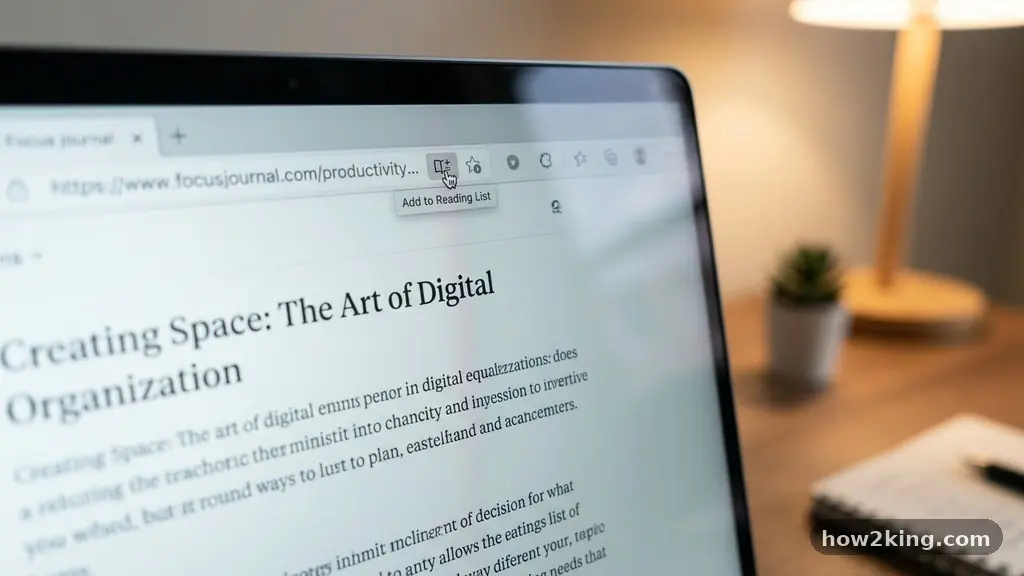
The most direct way to capture content is by utilizing the built-in reading list features found in modern web browsers. If you are using Safari on an iPhone or Mac, the “Reading List” function is specifically designed for this purpose.
When you find an interesting piece, you can tap the share button and select “Add to Reading List.” This action downloads a version of the page that is optimized for offline access, stripping away ads and unnecessary layout elements.
Chrome users have a similar, albeit slightly different, workflow that relies on the “Downloads” feature. If you are browsing on an Android device, you can tap the three-dot menu in the upper right corner and select the download icon.
This creates a local copy of the page, allowing you to open it later even when your device is in airplane mode. You can find these files in the “Downloads” section of your browser, which keeps your saved items organized separately from your standard bookmarks.
For desktop users, the “Save Page As” command remains a classic and highly effective technique. By pressing Ctrl+S (or Cmd+S on a Mac), you can save a webpage as a complete HTML file on your hard drive.
This captures the text and images into a folder that you can open in any browser without needing a connection. It is an excellent way to archive specific research for a long-term project or reference.
Converting Web Pages to PDF
Transforming a web page into a PDF is perhaps the most universal method for ensuring compatibility across all your devices. A PDF acts as a static snapshot of the content, preserving the original formatting, typography, and images exactly as they appear on the screen.
To do this on most mobile devices, you use the “Print” function within your browser’s share menu. Instead of sending the output to a physical printer, you choose the “Save as PDF” option from the printer selection dropdown.
This method is particularly useful because PDFs are easily indexed and stored within file management apps like Files on iOS or Google Drive on Android. You never have to worry about the original website updating or deleting the article, as you now possess a permanent file.
It is a robust solution for those who want to build a library of high-quality reading material. You can read these files using any standard PDF viewer, which often provides a more distraction-free experience than a web browser.
Leveraging Specialized Read-It-Later Apps
Dedicated services like Pocket or Instapaper provide a more sophisticated experience for managing your offline reading. These applications act as a digital repository where you can “clip” articles from any device, including your desktop browser or mobile app.
Once you save an article to these platforms, they automatically sync the text to your device’s local storage. This ensures that when you open the app while offline, your entire queue is ready and waiting.
These tools are superior because they offer a clean, consistent reading interface regardless of the original website’s design. They often include features like text-to-speech, adjustable font sizes, and dark mode, which significantly improve the reading experience.
Many power users prefer this approach because it prevents their browser bookmarks from becoming cluttered with temporary reading material. By centralizing your articles in one app, you keep your digital workspace organized and efficient.
Comparing Offline Access Methods
Choosing the right tool depends largely on how often you need to save content and how you prefer to organize your files. Each method offers distinct advantages in terms of storage, formatting, and ease of use. The following table provides a quick comparison of the most common approaches to help you decide which fits your workflow.
| Method | Best For | Offline Reliability | File Management |
|---|---|---|---|
| Browser Reading List | Casual, quick saves | High | Integrated |
| PDF Export | Archiving and research | Permanent | Manual/Folders |
| Read-it-Later Apps | Curated reading habits | Excellent | Automated |
| Save Page As (HTML) | Desktop users | High | Local Storage |
Managing Your Offline Library
Maintaining an offline library requires a bit of discipline to prevent your device storage from becoming overwhelmed. Because high-resolution images and embedded videos consume significant space, it is wise to periodically prune your saved items.
If you use a dedicated app like Pocket, check the settings menu to see if it allows you to limit the number of cached articles. This prevents the application from downloading hundreds of megabytes of data you no longer need.
If you prefer saving articles as PDFs, consider creating dedicated folders on your cloud storage service to keep them categorized by topic. You might have one folder for “Professional Development” and another for “Long-form Journalism.”
This organization makes it much easier to find specific content when you are offline and looking for something to read. Regularly moving these files to your computer’s hard drive can also free up valuable space on your smartphone.
Common Troubleshooting Tips
Sometimes, a saved page may appear blank or fail to load images properly when you are offline. This usually happens because the website uses dynamic scripts that require an active connection to render content.
To avoid this, always verify that the page has finished loading entirely before you trigger the save or print command. If you are using a mobile browser, ensure that your device has enough background data permissions to complete the download.
Another common issue involves “paywalled” or login-protected sites that prevent standard saving methods from functioning. In these cases, the best approach is to copy the raw text into a note-taking application like Notion or Obsidian before you lose your connection.
These apps are excellent for storing text-heavy content and ensure that you never lose access to the information you need. For more details on managing digital information, you can visit the Library of Congress for information on digital preservation standards.
Frequently Asked Questions
Does saving a webpage for offline use consume a lot of mobile data?
Generally, saving a text-heavy article consumes very little data, usually just a few hundred kilobytes. However, if the page contains many high-resolution images or embedded videos, the file size can increase significantly. It is best to save your articles while on a stable Wi-Fi connection to avoid unexpected mobile data usage.
Can I save an entire website for offline viewing?
While you can save individual pages, downloading an entire website is a complex process that requires specialized software known as “web crawlers.” For most users, it is much more practical to save specific articles or pages that you actually intend to read. Attempting to download entire sites can also violate the terms of service of many websites.
Will my bookmarks update if the original article changes?
No, when you save an article for offline reading, you are creating a static copy of the content as it existed at that specific moment. If the author updates the article, adds new information, or fixes typos, your offline version will remain unchanged. If you need the most recent version, you must reconnect to the internet and refresh the page.
Is there a limit to how many articles I can save?
The only real limit is the available storage space on your device. Most modern smartphones have ample storage for thousands of text-based articles, but if you save files with many images or PDFs, you might fill your storage faster. Periodically reviewing and deleting old or read articles is the best way to keep your device running smoothly.
Establishing Your Routine
Creating a consistent habit for saving content ensures you always have high-quality reading material ready for your next trip or commute. By choosing the method that best matches your hardware—whether it is a simple browser reading list or a dedicated app—you remove the stress of being disconnected. Remember to check your offline storage every few weeks to keep your collection fresh and manageable.
Saving an online article for reading when you have no internet is a simple skill that transforms your downtime into a valuable opportunity for learning and relaxation. Start by picking one of the methods mentioned above and testing it on your next journey. You will quickly find that being offline is no longer a barrier to your reading list.