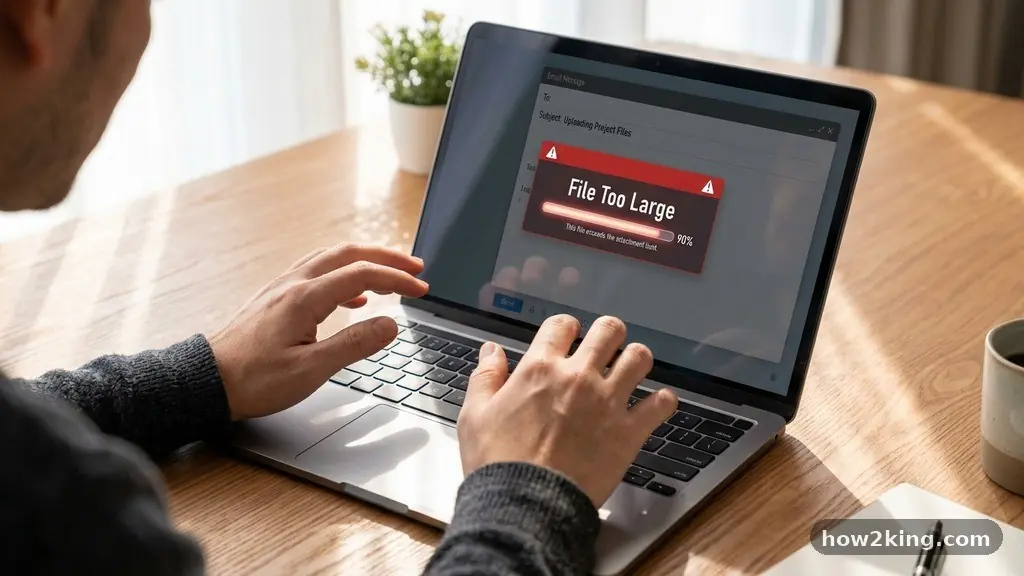
Dealing with the frustration of sharing a Large File When Email Attachments Are Too Small is a common hurdle for professionals and casual users alike. Most standard email providers impose strict limits, typically capping messages at 20MB or 25MB, which prevents the transmission of high-resolution videos, large archives, or complex project folders. Understanding how to bypass these restrictions allows you to maintain your workflow without constantly compressing data or losing quality.
By leveraging modern cloud storage and specialized transfer services, you can move gigabytes of data as easily as sending a brief note. This article provides the practical steps needed to manage your digital assets with confidence and speed.
Understanding Email Attachment Limitations
Most email platforms, such as Gmail, Outlook, and Yahoo, enforce a hard limit on how much data can be attached to a single outgoing message. Generally, this threshold sits at 25MB, though some enterprise setups may allow slightly more.
This restriction exists primarily to ensure the stability of mail servers and to prevent network congestion. When you attempt to attach a file exceeding this size, the server simply rejects the message, often returning a bounce-back notice that can be confusing to decipher.
The issue is not just about the file you are sending, but also the encoding process used by email protocols. When a file is attached to an email, it must be converted into a text-based format called MIME, which increases the overall size of the file by roughly 30%.
Consequently, a 20MB file might actually occupy 26MB of space once the email system processes it for transit. This is why even files that seem to fit under the limit sometimes fail to send.
Leveraging Cloud Storage Services
Cloud storage is the most reliable method for sharing large files because it removes the attachment from the email entirely. Instead of sending the actual data, you upload the file to a secure server and send the recipient a link to access it.
This approach is highly efficient because the transfer happens server-to-server rather than through your local internet connection. Popular platforms like Microsoft OneDrive and Dropbox are designed specifically for this purpose.
When you use these services, you maintain control over who sees your content. You can set permissions so that the recipient can only view the file or edit it, depending on your needs.
For those using enterprise environments, SharePoint is another powerful tool that integrates directly into the Microsoft ecosystem. It allows teams to share documents within a secure, managed environment, which is far safer than sending files as loose attachments that could be intercepted or lost.
Using Dedicated File Transfer Services
If you do not want to commit to a permanent cloud storage account, dedicated file transfer services offer a quick, one-time solution. These platforms are built for the sole purpose of moving data from one person to another without requiring the recipient to sign up for an account.
You simply upload your file, enter the recipient’s email address, and the service sends them a download link. Many of these services offer free tiers that allow you to send files up to 2GB or even 5GB without payment.
These services are particularly helpful when you need to send a one-off presentation or a large video file to a client who may not have access to specific enterprise software. The security features on these sites have evolved significantly, with many now offering password protection and expiration dates for links.
This ensures that your file is not left accessible on the internet indefinitely. Once the recipient downloads the file, you can even set the link to self-destruct to ensure data privacy.
Comparing Sharing Methods
To decide which tool is best for your specific situation, it is helpful to look at how different methods stack up regarding convenience, storage capacity, and security. While email attachments are fine for small documents, they quickly become a burden for anything heavier. Cloud storage is better for collaboration, while specialized transfer tools are better for rapid, anonymous delivery.
| Method | Max File Size (Typical) | Best Use Case | Security Level |
|---|---|---|---|
| Standard Email | 25MB | Text docs/spreadsheets | Moderate |
| Cloud Storage | 10GB – Unlimited | Ongoing projects | High (Admin controlled) |
| File Transfer Apps | 2GB – 20GB | One-time delivery | High (Link expiry) |
Managing File Compression Techniques
Sometimes, a file is only slightly over the limit, and simple compression can solve the problem. Using tools like ZIP or RAR allows you to package multiple files into a single container, which often reduces the overall size.
While this is not a permanent fix for massive video projects, it is an excellent way to organize a collection of smaller documents. Compression also helps ensure that the folder structure remains intact during the transfer process.
However, be aware that certain file types, such as JPEGs, MP4s, and PDFs, are already compressed. Attempting to zip these files again will yield very little space savings and may even increase the file size slightly due to the overhead of the archive format.
For these media files, cloud hosting is almost always the superior choice. Always check the properties of your file before spending time on compression to see if the effort will yield meaningful results.
Security Considerations for Large Transfers
When you move large amounts of data, security should be your primary concern. Sending sensitive information through an insecure link can lead to data leaks if that link is forwarded or indexed by search engines.
Always use platforms that offer end-to-end encryption or, at the very least, password protection for your downloads. This ensures that even if the link is intercepted, the recipient must possess the secondary key to open the file.
Furthermore, consider the lifespan of the link you generate. If you are sharing confidential financial or personal data, set the link to expire after 24 hours. This minimizes the window of opportunity for unauthorized access.
For corporate environments, stick to internal tools like SharePoint where IT departments can monitor and manage access logs effectively. Never share links to sensitive data on public forums or social media.
Automating Workflows for Future Transfers
If you find yourself frequently needing to send large files, it is worth integrating these tools into your daily workflow. Most modern operating systems and email clients offer built-in features that automatically convert large attachments into cloud links. For example, Outlook can be configured to automatically upload attachments to OneDrive when they exceed a certain size, sending the link instead of the file.
This creates a transparent experience for the sender and the receiver. You do not have to manually log in to a different website to generate a link; the software handles the backend logistics automatically.
By taking the time to configure these settings once, you save hours of manual labor over the course of a year. It also ensures that your email inbox stays clean and uncluttered, as you are not storing copies of large files in your sent items folder.
Frequently Asked Questions
Can I increase my email’s attachment limit?
Generally, no. Email attachment limits are set by the service provider’s server infrastructure and cannot be changed by the user. If you need to send larger files, you must use an external cloud or transfer service as a workaround.
Is it safe to use free file transfer websites?
Most reputable free file transfer services are safe for non-sensitive data. However, for highly confidential documents, it is better to use enterprise-grade cloud solutions that offer managed permissions and audit trails rather than free, anonymous transfer sites.
What happens if I exceed the attachment limit?
Your email will typically fail to send, and you will receive an automated “bounce-back” notification from your mail server. This message usually explains that the message size exceeded the allowed limit, and the email will not be delivered to the recipient.
Do the recipients need an account to download my files?
It depends on the service. Most dedicated file transfer websites allow the recipient to download files without creating an account. However, if you use a platform like OneDrive or Google Drive, you may need to adjust your sharing settings to “Anyone with the link” to ensure the recipient can access it without signing in.
Final Thoughts on Large File Management
Mastering the art of sharing a Large File When Email Attachments Are Too Small is an essential skill in the modern digital landscape. By moving away from the limitations of legacy email systems and embracing cloud-based solutions, you can handle high-resolution assets and complex data sets with ease. Whether you choose to use established cloud storage platforms or quick, one-off transfer services, the key is to prioritize both convenience and security.
Start by exploring the built-in features of your current email provider, as these often offer the most seamless path forward. If you have any questions about specific services or security protocols, feel free to reach out for further clarification on how to optimize your digital file sharing.