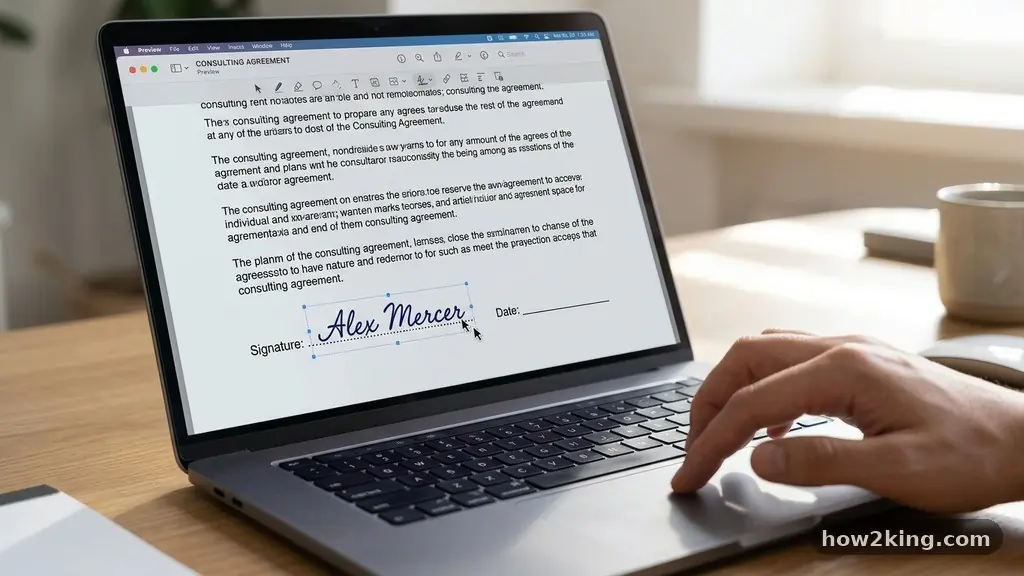
Learning the process of adding a Signature to a PDF Without Printing the Document is a vital skill for modern professionals and students alike. Relying on physical scanners and printers slows down workflows, consumes unnecessary paper, and creates clutter in your workspace. By leveraging built-in system tools or dedicated e-sign software, you can authenticate your files in seconds from any device.
This approach not only saves time but also ensures that your documents remain in a professional digital format. Understanding these methods will help you handle contracts, forms, and permission slips with ease, keeping your administrative tasks efficient and environmentally friendly.
Using Built-in Tools on macOS
If you are a Mac user, the Preview app is the most efficient way to handle document signing. You do not need to install extra software, as this utility is already integrated into your system. To begin, open your PDF document directly in Preview by double-clicking the file.
Once the document is open, look for the markup toolbar, which is typically represented by a small pen-tip icon in the upper right corner. Clicking this icon expands the toolset, where you will find the signature button that looks like a cursive script.
You have three distinct ways to capture your mark within the Preview interface. You can sign your name on a piece of white paper and hold it up to your webcam, which the software will then scan and vectorize. Alternatively, you can use your trackpad to draw your signature with your finger.
If you have a touchscreen-enabled device or a connected tablet, you can use a stylus for greater precision. Once you have captured the signature, it is saved to your account, allowing you to drag and drop it onto any PDF document in the future.
Leveraging Adobe Acrobat Reader
For users on Windows or those who prefer a standardized approach across platforms, Adobe Acrobat Reader remains the industry benchmark. You can download the free version from the official Adobe Acrobat signature portal to get started.
Once the application is installed, open your file and select the “Fill & Sign” tool from the right-hand panel. This tool is designed specifically to make the process of adding a signature to a PDF without printing the document as straightforward as possible.
Clicking the “Sign” button in the toolbar allows you to type your name, draw your signature, or upload an image file. If you choose to upload an image, ensure you are using a PNG file with a transparent background to avoid a white box appearing over your document text.
After placing your signature, you can resize it or change its color to match the rest of the document. The software automatically flattens these elements when you save, ensuring the signature is securely embedded within the PDF document.
Mobile Solutions for On-the-Go Signing
Mobile devices have transformed the way we handle paperwork, making it possible to sign documents while commuting or away from a desk. Most modern smartphones have built-in PDF editing features that require no third-party apps. On an iPhone or iPad, opening a PDF in the Files app allows you to tap the markup icon directly.
You can then select the plus button and choose “Signature” to draw or insert your saved mark. This method is incredibly fast and produces a clean, high-resolution result that looks professional on any contract.
Android users can utilize the Google Drive app or dedicated mobile PDF editing software to achieve the same goal. Many of these apps allow you to import a signature image that you have previously saved to your cloud storage.
By keeping a high-quality PNG of your signature in your cloud drive, you ensure that you can sign any urgent document, regardless of your physical location. This flexibility is a game-changer for those who frequently deal with time-sensitive approvals or authorization forms.
Ensuring Legal Validity
When you transition to digital signing, you might worry about whether your mark carries the same weight as an ink signature. In most jurisdictions, including the United States and the European Union, an electronic signature is considered legally binding if it clearly indicates intent to sign.
The key is ensuring that the software you use creates a tamper-evident file. When you use tools like Adobe Acrobat or dedicated e-sign services, the software often embeds a security certificate into the metadata of the file.
If a document is altered after you have applied your signature, these advanced tools can often detect the change and invalidate the signature. This provides a level of security that physical ink on paper simply cannot offer.
Always check the specific requirements of the organization requesting your signature, as some government or financial institutions may require a specific type of digital certificate. For most standard business agreements, however, a clear, captured digital image of your signature is more than sufficient.
Comparing Common Signing Methods
Choosing the right tool depends largely on your operating system and how often you need to sign documents. While built-in tools are excellent for occasional use, dedicated software offers more advanced features like audit trails and multi-party signing. The following table provides a quick comparison of the most common methods available to help you decide which is best for your workflow.
| Method | Best For | Complexity |
|---|---|---|
| Preview (macOS) | Quick, local signatures | Low |
| Adobe Acrobat | Professional, secure documents | Medium |
| Mobile Markup | Signing on the go | Low |
| E-sign Services | Complex, multi-party contracts | High |
Best Practices for Digital Signatures
To maintain a professional appearance, your digital signature should be as clean as possible. If you are taking a photo of your signature, do it on a plain white sheet of paper with a black or dark blue pen. Ensure the lighting is even and there are no shadows falling across the signature area.
Once you have the image, use a basic photo editor to crop it tightly around your name. Converting this to a PNG file with a transparent background will ensure it blends perfectly into any document you sign.
It is also important to keep your signature secure. Never share your device with others while you are logged into your signing software, as your saved signature could be easily misused.
If you are using a cloud-based service, ensure you have two-factor authentication enabled to protect your account. By following these simple steps, you can confidently manage your paperwork digitally without compromising on security or visual quality.
- Use a high-contrast pen on plain white paper for the best image capture.
- Always save your signature as a PNG file to preserve transparency.
- Store your primary signature file in a secure, encrypted folder.
- Check if the document requires a specific security certificate before signing.
- Test your signature placement on a copy of the document first.
Frequently Asked Questions
Is an electronic signature the same as a digital signature?
While often used interchangeably, they are technically different. An electronic signature is a broad category that includes any digital mark of intent, such as typing your name or pasting an image. A digital signature is a specific, highly secure, and cryptographically verified type of electronic signature that uses a security certificate to ensure the document has not been altered.
Can I use a photo of my signature?
Yes, you can take a photo of your signature and convert it into an image file. Once you have the file, you can upload it into your PDF editing software. For the best results, use a high-quality camera and ensure the background is perfectly white so it can be easily made transparent.
Do I need specialized software to sign a PDF?
Not necessarily. Most operating systems, such as macOS and Windows, have built-in tools that allow you to sign PDFs without extra software. However, if you need advanced features like tracking when a document is opened or requiring multiple people to sign, you may want to invest in dedicated e-sign tools.
Will my signature be visible to everyone who opens the file?
Yes, once you add a signature to a PDF and save the document, the signature becomes part of the file. Anyone who views the document will be able to see the signature as if it were printed on the page. If you are concerned about privacy, consider using software that allows you to password-protect your PDF files after signing.
Is it safe to sign legal contracts digitally?
Digital and electronic signatures are legally recognized in most countries, including under the ESIGN Act in the United States. They are widely used for everything from rental agreements to employment contracts. As long as the intent to sign is clear and the process is secure, your digital signature is just as valid as a wet ink signature.
Conclusion
Mastering the process of adding a Signature to a PDF Without Printing the Document is a simple way to modernize your daily routine. By using the tools already available on your computer or mobile device, you can eliminate the need for cumbersome hardware and keep your files organized in a digital format. Whether you are using a trackpad, a stylus, or a scanned image, the result is a professional and legally valid way to handle your paperwork.
Start by testing these methods on a sample file today to see how much time you can save. Embracing these digital habits helps you stay productive and ensures you are ready for any document that comes your way.