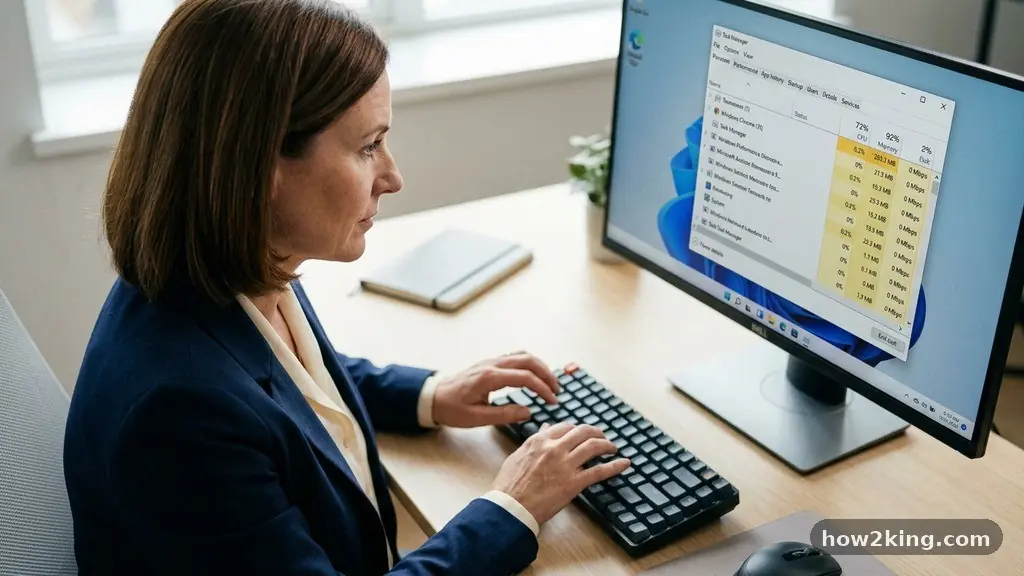
When your PC starts to lag or takes forever to boot, you are likely dealing with software clutter running behind the scenes. Successfully reducing Background Apps That Slow Down a Windows Computer involves managing which programs launch automatically and which ones are allowed to poll the internet or sync data while you work.
By pruning these unnecessary tasks, you can reclaim significant system resources and restore your machine to its original speed. This process focuses on balancing convenience with efficiency to ensure your hardware works for you, not for hidden processes.
Identifying Resource-Heavy Processes
The first step in improving your system’s responsiveness is understanding what is actually consuming your hardware capacity. You should open the Task Manager by pressing Ctrl + Shift + Esc on your keyboard.
This utility provides a real-time snapshot of your current CPU usage, memory consumption, and disk activity. Look for processes that maintain high percentages even when you are not actively using them.
Using the Processes Tab
Once the window is open, click on the “Processes” tab to see everything currently active. You can sort by clicking the column headers for CPU, Memory, or Disk to bring the hungriest applications to the top. If you see a program you rarely use hovering at the top of these lists, it is a primary candidate for removal or restriction. Be cautious, however, as some system processes are essential for Windows to function correctly.
Digging Deeper with Resource Monitor
For a more granular view, click the “Performance” tab and then select “Open Resource Monitor” at the bottom. This tool offers a deeper look into exactly how your system resources are being distributed across various services. It tracks network activity and file handles, which can reveal why a specific app might be causing stuttering or slow load times. This level of detail is vital when simple restarts do not resolve your performance issues.
Managing Startup Apps for Faster Boots
Many programs are designed to launch the moment you log into your account, creating a significant startup impact. These autostart programs are often the biggest culprits when it comes to long boot times and sluggish initial performance.
By disabling the ones you do not need immediately, you can drastically reduce the load on your hardware at startup. You can manage these directly within the Task Manager‘s “Startup” tab.
Evaluating Startup Impact
Windows helpfully labels the effect of each program as “High,” “Medium,” or “Low” in the Startup tab. You should prioritize disabling the ones marked “High” that you do not require for your daily workflow. For example, many chat applications or cloud-syncing tools default to starting with Windows, even if you only open them once a day. Simply right-click these items and select “Disable” to prevent them from launching automatically.
Cleaning Up Legacy Software
Sometimes, the apps slowing down your computer are remnants of software you installed months or years ago. These programs might have left behind background services that still attempt to update or poll for data. If you find a program in your startup list that you no longer recognize or use, it is time to uninstall it through the Control Panel. Removing unused bloatware is one of the most effective ways to keep your machine lean and fast.
Configuring Windows Settings for Background Permissions
Modern versions of the operating system, specifically Windows 10 and Windows 11, have built-in privacy and power management features that control background activity. You can navigate to Windows Settings to toggle these permissions on a per-app basis. This is particularly useful for Universal Windows Platform (UWP) apps that often run silently to provide notifications or live tile updates.
Adjusting the Background Apps Permission
In Windows 10, you can find a dedicated “Background apps” section under the Privacy settings menu. Here, you can flip a master switch to turn off background activity for all apps or pick and choose which ones are allowed to run. For Windows 11, this management is moved to the “Apps & features” menu, where you can click “Advanced options” for specific applications. Limiting these permissions stops unnecessary programs from consuming RAM and battery life while you are focused on other tasks.
Why Background Activity Matters
Even if a background app seems lightweight, the cumulative effect of having dozens of them running can be significant. Each one claims a small slice of your processor’s attention and memory, which can lead to micro-stutters during heavy tasks like gaming or video editing. By being selective about which apps have permission to run, you ensure that your most critical software gets the priority it deserves. This is a simple, non-destructive way to optimize your environment.
The Impact of Bloatware and Pre-installed Software
New computers often come pre-loaded with software that manufacturers include for various marketing reasons. This bloatware frequently includes trial versions of antivirus software, proprietary hardware utilities, and promotional games.
These programs are notorious for running multiple background services that monitor your usage or nag you to upgrade. Removing these can result in a noticeable improvement in overall system stability and speed.
Identifying Unnecessary Utilities
To identify these, look for software branded by your PC manufacturer that you never use. Common examples include driver update utilities that rarely work as intended or “optimizer” suites that do more harm than good by interfering with native Windows functions. If you are uncertain about a piece of software, you can search for its name online to see if it is considered essential or bloatware. You can find more information about maintaining your system’s health through the official Microsoft support portal.
Safely Removing Programs
Always use the standard uninstallation process via the Windows Settings menu rather than just deleting folders. This ensures that registry entries, temporary files, and background services are properly cleaned up. If a program is particularly stubborn, you may need to use a dedicated uninstaller tool that can scan for leftover files after the initial removal. A clean slate is always better than a partially deleted program that keeps trying to run.
Comparing Performance Impact
It is helpful to visualize how different types of background activity affect your machine’s performance. The table below outlines common categories of background programs and their typical impact on your hardware. Note that individual performance can vary based on your specific hardware configuration and the number of active programs.
| Category | Common Examples | Resource Impact |
|---|---|---|
| Cloud Syncing | OneDrive, Dropbox, Google Drive | High Disk/Network |
| Communication | Discord, Slack, Microsoft Teams | Moderate Memory |
| Manufacturer Bloat | Support tools, Trial Antivirus | High CPU/Memory |
| System Widgets | Weather, News, Live Tiles | Low CPU |
Understanding the Data
As shown in the table, cloud syncing services are often the most demanding because they constantly scan your files for changes. While these are useful, you might consider pausing them while you are doing work that requires maximum system performance. Similarly, communication apps are convenient, but they can be resource-intensive if they are set to launch at startup and remain active in the system tray. Balancing these needs is key to maintaining a smooth experience.
Hardware Considerations and Upgrades
Sometimes, the issue isn’t just the software running in the background, but the limitations of the hardware itself. If you have minimized all unnecessary apps and your computer is still struggling, your hardware might be reaching its capacity. Modern operating systems are designed to utilize available RAM to cache data for faster access, but if you have less than 8GB of memory, the system will frequently swap data to the drive, causing slowdowns.
The Role of Memory and Storage
If your disk usage is constantly high, upgrading from a traditional mechanical hard drive to a Solid State Drive (SSD) is the single most effective hardware change you can make. An SSD can handle multiple background read/write requests without the latency associated with spinning platters. Similarly, increasing your RAM allows the operating system to keep more processes in memory, reducing the need for constant disk access. These upgrades provide a much more stable environment for background tasks.
Monitoring Your Improvements
After making software changes or hardware upgrades, use the Performance monitor to track the difference. You should see lower average CPU spikes and more available memory during idle times. If you notice specific processes still acting aggressively, you can investigate them further or find alternative, lighter-weight software. Constant monitoring helps you keep your system running at its peak efficiency over time.
Frequently Asked Questions
Is it safe to disable all background apps?
It is generally not recommended to disable every single background process, as some are required for Windows to function, such as security updates and audio drivers. Focus on disabling third-party applications and services that you know you do not need. If you disable something essential, you can usually re-enable it via the same menu.
How do I know which processes are safe to stop?
A good rule of thumb is to search for the process name online if you are unsure. Most Windows system files have recognizable names, while third-party apps usually show up with their specific company name. If a process name looks like random characters, it could potentially be malware, and you should investigate it thoroughly.
Does disabling background apps save battery life?
Yes, reducing background activity is one of the most effective ways to extend battery life on laptops. By preventing apps from constantly waking up the processor or accessing the internet, you reduce the overall power draw. This is particularly noticeable when you are away from a power outlet for extended periods.
Why do apps keep turning themselves back on?
Some applications have settings within their own menus that force them to launch at startup or run in the background. Even if you disable them in the Windows Task Manager, the app’s internal settings might override this change. Check the settings menu inside the specific application to turn off features like “Start with Windows” or “Always run in background.”
Maintaining a Smooth Experience
Optimizing your machine is not a one-time chore but a habit of keeping your environment clean. By regularly checking your startup list and permissions, you prevent the gradual buildup of software that drains your performance.
Reducing Background Apps That Slow Down a Windows Computer ensures that your hardware remains snappy and responsive, no matter how long you have been using the machine. Taking these small, intentional steps allows you to focus on your work or play without the frustration of constant lag.
Start by auditing your startup list today and removing just two or three programs you do not use daily. You will likely notice an immediate improvement in how quickly your desktop loads and how smoothly your apps respond.
If you ever feel like your system is slowing down again, return to these steps to identify the new culprits. Consistent management is the secret to a high-performing computer that serves your needs efficiently.