Mastering the art of comparing two documents without reading every line again saves hours of tedious manual review. Whether you are reconciling legal contracts, verifying code changes, or checking drafts for accidental deletions, modern technology offers precise ways to highlight discrepancies instantly.
You can achieve professional-grade accuracy by leveraging automated tools that bypass the need for human eyes to scan every character. This approach not only prevents fatigue but also eliminates the risk of missing subtle modifications that often slip past even the most attentive reader.
Automated Tools for Instant Comparison
The most efficient way to identify differences between two files is by utilizing dedicated document comparison software. These tools use algorithmic matching to scan both documents and generate a report showing exactly where text was added, deleted, or modified.
Instead of manually cross-referencing pages, you upload the original and the revised versions, and the software handles the rest. This method is particularly effective for long-form documents where even a single word change can alter the legal or technical meaning of a sentence.
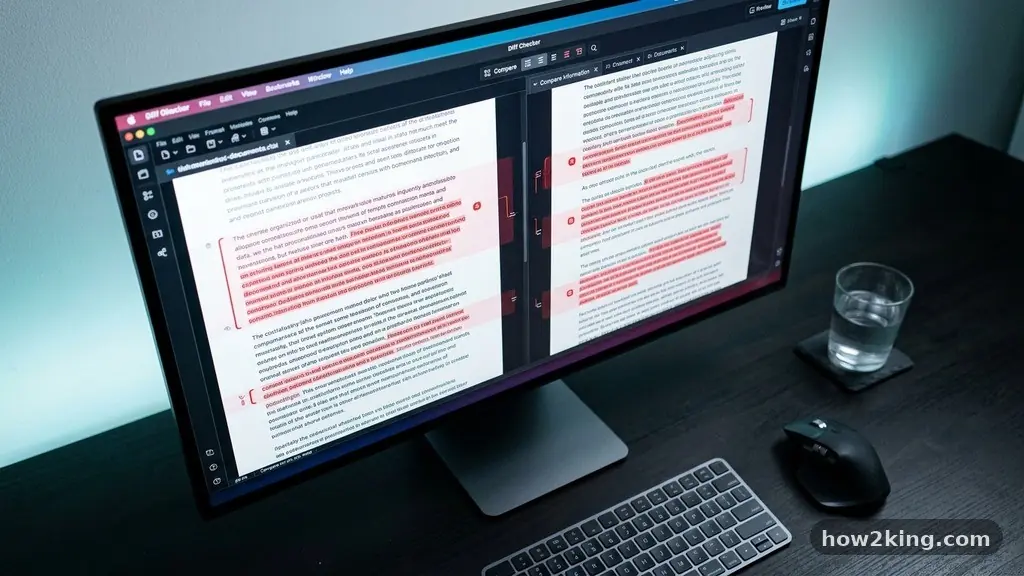
Many professionals rely on diff tools that provide a side-by-side view with color-coded syntax highlighting. This visual representation makes it immediate to see what has changed, as additions are typically marked in green and deletions in red.
By automating the visual scan, you ensure that you are focusing your cognitive energy on the content of the changes rather than the act of searching for them. Using these digital assistants turns a multi-hour task into a process that takes only a few seconds.
Understanding the Role of Redlining
In legal and corporate environments, the term “redlining” refers to the practice of marking changes on a document so they are easily identifiable. When you compare two documents without reading every line again, you are essentially performing a digital redline.
Modern word processors often include built-in features that track changes in real-time, allowing you to accept or reject edits before finalizing a document. This function is essential for maintaining version control during collaborative projects where multiple stakeholders provide feedback.
If you are working with static files like PDFs, specialized software can perform a digital overlay to detect differences. This process is highly accurate, as it compares the actual pixels or text strings to find discrepancies that might be invisible to the naked eye.
Relying on these tools allows you to maintain the integrity of your document management systems while ensuring that no unauthorized edits remain in the final version. It provides a permanent audit trail of who changed what and when, which is vital for compliance and accountability.
Comparing File Integrity and Metadata
Beyond the visible text, document comparison often requires an examination of underlying metadata. Metadata includes details like the author, creation date, and last modified timestamps, which are often overlooked during a casual review.
When you need to verify if two files are identical in origin, checking these hidden attributes is a necessary step. If you suspect a file has been altered or replaced, comparing file hashes or checksums can confirm if the content has remained unchanged at the binary level.
This level of scrutiny is crucial for sensitive data protection and preventing the accidental use of outdated versions. By verifying the integrity of the file metadata, you can be certain that you are working with the correct iteration of a project.
Many advanced software platforms offer automated reconciliation reports that compare both the visible text and the hidden technical details. This dual-layer check is the gold standard for high-stakes documentation where accuracy is non-negotiable.
Leveraging Optical Character Recognition
When you are dealing with scanned documents or images, standard text comparison tools might struggle to interpret the content. Optical Character Recognition (OCR) technology is the solution for converting these visual inputs into machine-readable text.
Once the OCR process is complete, you can then run the resulting text through your preferred comparison engine. This allows you to bridge the gap between physical paperwork and digital analysis, enabling you to compare printed contracts against digital drafts without manual re-typing.
The accuracy of OCR has improved significantly, making it a reliable tool for digitizing legacy documentation. However, it is always wise to perform a quick spot-check on the converted text to ensure no characters were misinterpreted during the scan.
Once the text is converted and verified, the comparison process becomes as simple as comparing two standard digital files. This workflow is an essential skill for anyone managing archival records or historical document sets.
Efficiency Metrics for Document Review
To understand the value of switching to automated workflows, it helps to look at the time saved during the review process. Manual proofreading is prone to human error, with accuracy rates dropping significantly after the first hour of sustained focus.
Automated tools maintain a consistent level of precision regardless of the volume of text being compared. The following table illustrates the typical time investment for different types of document comparison methods.
| Method | Time for 50 Pages | Accuracy Level |
|---|---|---|
| Manual Reading | 120–180 Minutes | Low to Medium |
| Built-in Track Changes | 30–60 Minutes | High |
| Automated Comparison Software | 2–5 Minutes | Very High |
As demonstrated, the transition to software-based solutions provides a massive increase in productivity. By reducing the time spent on administrative verification, you free up your schedule for more strategic tasks that require human judgment.
This shift represents a fundamental change in how professional documentation is handled. You are no longer limited by your reading speed, but rather by the speed at which you can interpret the highlights provided by your tools.
Best Practices for Collaborative Reviews
When multiple people are involved in a document lifecycle, the risk of version confusion increases exponentially. Implementing a standard protocol for how documents are named and stored is the first step toward effective comparison.
Always use a clear versioning system, such as adding a date or a sequence number to the filename, to avoid comparing the wrong files. This simple habit makes the process of comparing two documents without reading every line again much smoother and less prone to errors.
* Maintain a single source of truth in a centralized folder.
* Use descriptive naming conventions like “Project_Proposal_v2_Final”.
* Archive outdated versions in a separate folder to prevent clutter.
* Perform periodic reconciliation reports to ensure all team members are synced.
* Utilize cloud-based platforms that automatically track document history.
Following these steps creates a environment where comparison tools can perform at their peak. When your filing structure is logical, the software can quickly pull the correct versions for analysis.
This minimizes the time spent searching for files and maximizes the time spent reviewing the actual content. Consistent habits are just as important as the software itself when maintaining high standards of document accuracy.
Addressing Common Hurdles
Even with the best tools, you might encounter challenges such as formatting inconsistencies or incompatible file types. Sometimes, a document might look different simply because of a change in font, margin settings, or page breaks.
Learning to configure your comparison software to ignore “formatting changes” is a key skill for focused review. This allows the tool to focus exclusively on textual changes, which are usually what matter most when checking for revisions.
Another common hurdle is dealing with encrypted or password-protected files. Before you can run an automated comparison, you must ensure you have the appropriate permissions and access to the file content. If you are dealing with sensitive data, ensure that your chosen software complies with your organization’s security policies.
You can find more information on data security and document handling on the National Institute of Standards and Technology website. Taking these precautions ensures that your efficiency gains do not come at the cost of document security or compliance.
Frequently Asked Questions
Can I compare PDF files to Word documents?
Yes, most professional comparison software can handle cross-format comparisons. The software converts the PDF to a temporary text format before running the analysis, ensuring you can see the differences between the two distinct file types.
Do these tools work for handwritten notes?
Standard comparison tools are designed for typed text. If you have handwritten notes, you must first use an OCR (Optical Character Recognition) tool to convert the handwriting into digital text before running a comparison.
What if the documents have different layouts?
High-quality comparison tools are designed to ignore layout changes, such as different margins or page breaks. You can usually toggle settings to focus specifically on text deletions, additions, and modifications rather than visual formatting.
Are there free options for document comparison?
There are many free online tools and plugins available, though they may have limitations on file size or security. For sensitive business or legal documents, it is recommended to use secure, enterprise-grade software that keeps data private.
How do I know if I missed a change?
The best way to ensure no changes are missed is to use software that provides a generated reconciliation report. This summary list itemizes every change found, allowing you to review the list systematically rather than scanning the pages yourself.
Final Thoughts
Learning how to compare two documents without reading every line again is a transformative skill for anyone handling heavy documentation. By integrating automated tools, disciplined file management, and a clear understanding of your software’s capabilities, you eliminate the drudgery of manual proofreading. This method allows you to focus on the substance of the changes rather than the fatigue of the process.
As you adopt these techniques, you will find that your reviews become faster, more accurate, and far less stressful. Start by testing these tools on your current projects and watch how quickly your efficiency increases. Embracing technology to handle the repetitive aspects of your work is the best way to ensure you always have the most accurate and up-to-date versions of your important documents.