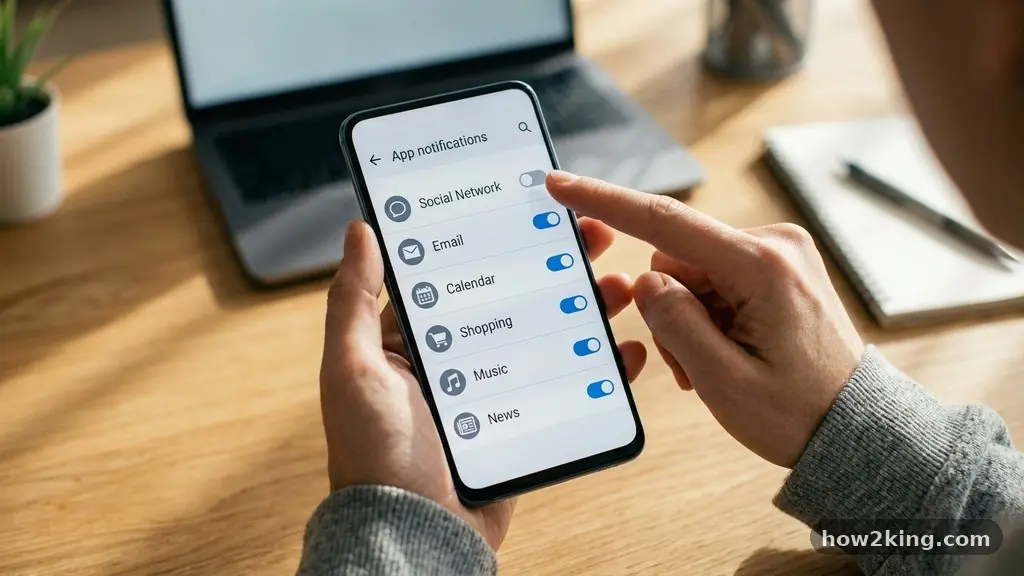
Managing your digital environment starts with reclaiming your attention from the constant stream of pings and buzzes. If you find yourself constantly checking your lock screen, you are likely dealing with a notification overload that disrupts your focus and drains your battery.
Successfully stoping unwanted notifications from taking over your phone requires a methodical approach to your device‘s alert settings. By taking control now, you can ensure that only the alerts you truly care about reach you, allowing for a much quieter and more productive daily experience.
Identifying the Source of Constant Alerts
The first step in regaining control is identifying exactly which apps are responsible for the noise. Most users find that a small handful of applications are responsible for the vast majority of their daily interruptions.
You should head into your primary settings app to view a list of everything installed on your device. Most modern operating systems provide a clear breakdown of which apps have permission to push alerts to your display.
Look for apps that send frequent, non-essential updates like promotional offers or game reminders. These are the primary culprits in the struggle of stoping unwanted notifications from taking over your phone.
If you see an app you haven’t opened in months, it is a prime candidate for a complete ban on alerts. You can also view which apps are most frequently interrupting your day by checking your screen time or digital wellbeing dashboard.
Managing Notification Channels on Android
Android devices offer a granular level of control through a feature known as notification channels. This allows you to silence specific types of alerts from a single app rather than blocking the entire application.
For instance, a news app might have separate channels for “Breaking News” and “Daily Digest.” You can keep the urgent alerts enabled while silencing the less important ones.
To access these, navigate to your settings app and locate the notifications menu. Tap on an app to see if it supports categories or channels. If it does, you will see a list of toggles for different types of alerts.
Disabling the ones you don’t want is a simple way to keep your phone useful without the constant distraction. This method is far more effective than a blanket ban because it preserves the utility of the app while removing the clutter.
Adjusting iPhone Alert Preferences
Apple provides a streamlined interface for managing how your device handles incoming information. You can choose to receive alerts on your lock screen, in your notification center, or as banners at the top of your display.
If you want to stop unwanted notifications from taking over your phone, you should review these delivery styles for every app. Many users find that disabling lock screen visibility for non-essential apps significantly lowers their stress levels throughout the day.
When you open your settings, select the notifications section to see a list of all your installed software. You can tap on any app to adjust its specific permissions.
If you still want to see the alert but don’t want the sound, you can simply toggle off the sound notification. This keeps the badge count or banner visible so you can check it on your own terms rather than being prompted by a noise.
Using Focus Modes for Better Concentration
Modern smartphones include built-in focus modes designed to filter out unnecessary information during specific times of the day. Whether you are working, sleeping, or driving, you can create a profile that only allows alerts from people or apps you designate. This is a powerful tool for stopping unwanted notifications from taking over your phone because it automates the process of silencing your device.
You can set these modes to trigger automatically based on your location, time of day, or when you open certain apps. When a mode is active, your device will hold all non-priority alerts in a silent queue.
You can then review them later when you have the time, rather than letting them interrupt your workflow. This shift from reactive to proactive notification management is a game-changer for maintaining focus.
The Impact of Silent Delivery
Many people are unaware that they can configure alerts to be delivered silently. This means the notification will still appear in your notification center, but it won’t vibrate, play a sound, or light up your screen.
This is a perfect middle ground for apps that you need to check occasionally but don’t want to be interrupted by during the day. You can find this setting under the delivery options for each specific app in your system preferences.
Comparing Alert Delivery Methods
| Delivery Style | Sound | Vibration | Lock Screen |
|---|---|---|---|
| Immediate | Yes | Yes | Yes |
| Silent | No | No | Yes |
| Banner Only | No | No | Yes |
| Off | No | No | No |
This table illustrates how you can customize your experience to match your personal needs. By choosing the right delivery style, you move from being a passive recipient of information to an active curator of your digital space. Remember that you can adjust these settings at any time if you find you are missing information that you actually want to see.
Common Culprits and How to Disable Them
Some apps are notorious for sending excessive alerts that serve no real purpose for the user. Games, retail apps, and social media platforms are often the most aggressive in their attempts to grab your attention. If you are struggling with stoping unwanted notifications from taking over your phone, consider these common categories for a clean sweep:
- Shopping apps that send “Flash Sale” alerts multiple times a day.
- Mobile games that remind you to play or claim rewards.
- News aggregators that push every minor headline as a breaking story.
- Social media apps that notify you of every like or minor interaction.
- Fitness apps that persistently remind you to move or track your progress.
Reviewing these categories allows you to make quick decisions about what deserves your time. If you find yourself constantly swiping away alerts from a specific category, it is a clear sign that you should turn notifications off for those apps entirely. You can always visit the official Android Help Center for more technical advice on managing these system-level permissions.
Frequently Asked Questions
Why do I still get notifications after turning them off?
Sometimes an app has multiple notification categories, and you may have only disabled one. Ensure you check the advanced settings for the app to see if there are other toggles that need to be switched off. Occasionally, a system update might reset these preferences, so it is worth checking your settings after a major software update.
How do I hide notifications from my lock screen?
Go to your device’s settings and find the notifications menu. From there, you can select specific apps and look for an option labeled “Lock Screen” or “Visibility.” You can set this to “Hidden” or “Don’t show” to ensure that private or distracting information does not appear when your phone is locked.
Can I turn off all notifications at once?
Most devices have a “Do Not Disturb” mode that effectively silences everything with a single tap. If you want to permanently disable all alerts for a specific app, you must go into the settings for that individual application. There is no master switch to disable every notification across every app, as this would prevent essential services like phone calls or emergency alerts from getting through.
What if I accidentally turn off important alerts?
You can easily reverse any changes you make by returning to the same settings menu. The system will keep a record of the apps you have restricted, making it easy to identify and re-enable them. It is perfectly normal to experiment with your settings until you find the right balance of information and silence.
How do I stop notifications that won’t go away?
If a notification is stuck, it is often due to a background process or a temporary software glitch. Try force-stopping the app through your settings, or simply restart your device to clear the cache. If the issue persists, you may need to update the application to the latest version to resolve the bug.
Managing your digital life is an ongoing process of refining what gets your attention. By consistently stoping unwanted notifications from taking over your phone, you create room for more important tasks and genuine relaxation. Start by auditing your most frequent offenders, then use the built-in tools like focus modes to automate your peace of mind.
You will likely find that your phone becomes a much more useful tool once it stops demanding your attention for every trivial update. It is time to make your device work for you, rather than the other way around.